
Order Lifecycle & Fulfillment
Manage the complete lifecycle of customer orders from checkout through fulfillment and completion.
In plain words
An order is a journey: the customer pays, you confirm, you pack, you ship, it arrives. Each stop on that journey is a status, and this page explains what each one means and what you are supposed to do at it.
What this is
The Orders view is where merchants manage and track customer purchases inside Trapyfy. Orders can come from multiple sales channels including the online storefront, POS, kiosk, and internal or manual ordering workflows.
Reliable order workflows help merchants reduce operational friction and improve customer experience.
Watch this walkthrough for a quick overview of the workflow.
Managing customer orders
The Orders list gives merchants a full view of all customer orders across sales channels. From this view merchants can:
- Search by order ID or customer email
- Filter by status and date range
- Review order totals, shipping company, and tracking number
- Open order actions and update order status
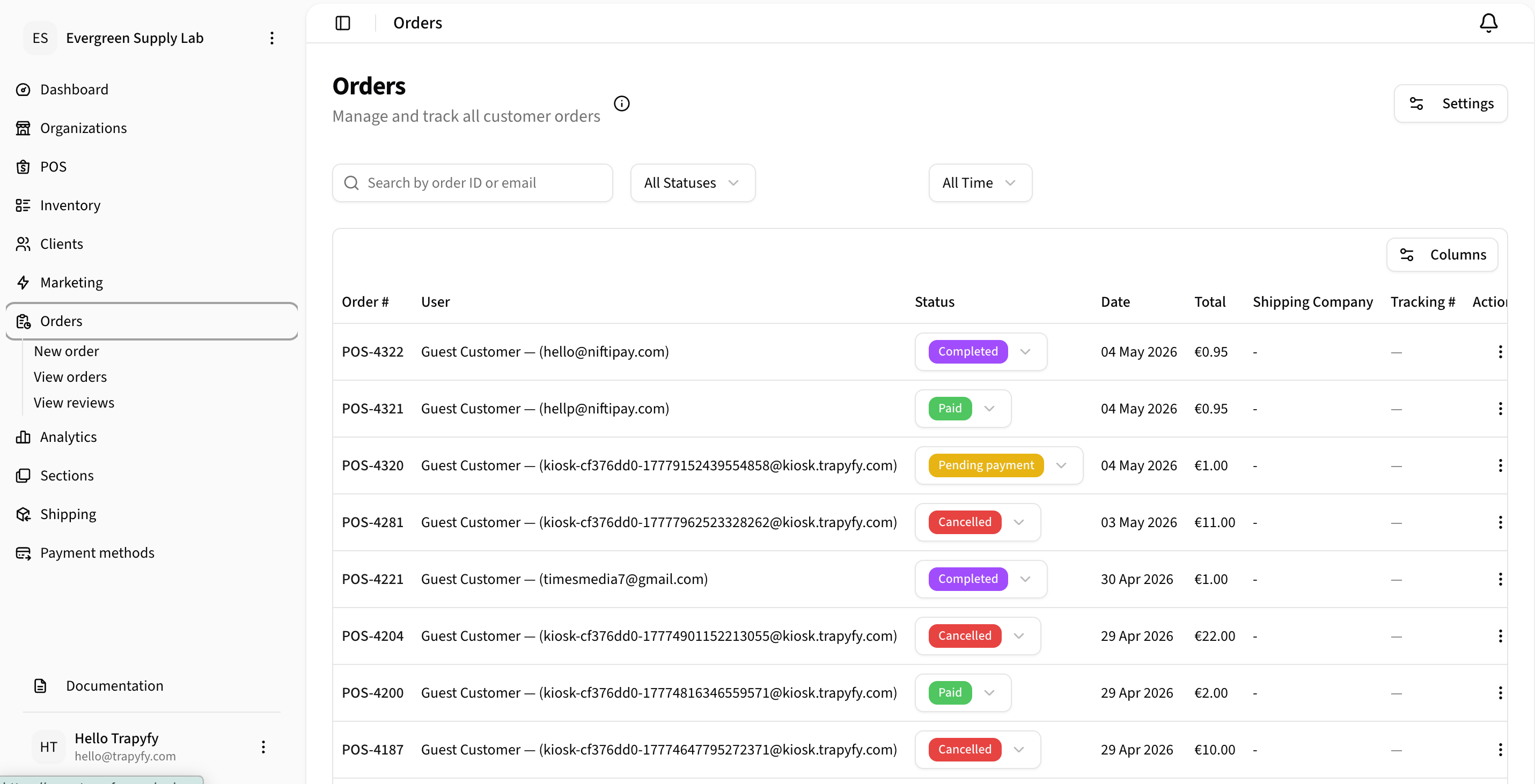
Use the Orders list to search, filter, review, and update customer orders across sales channels.
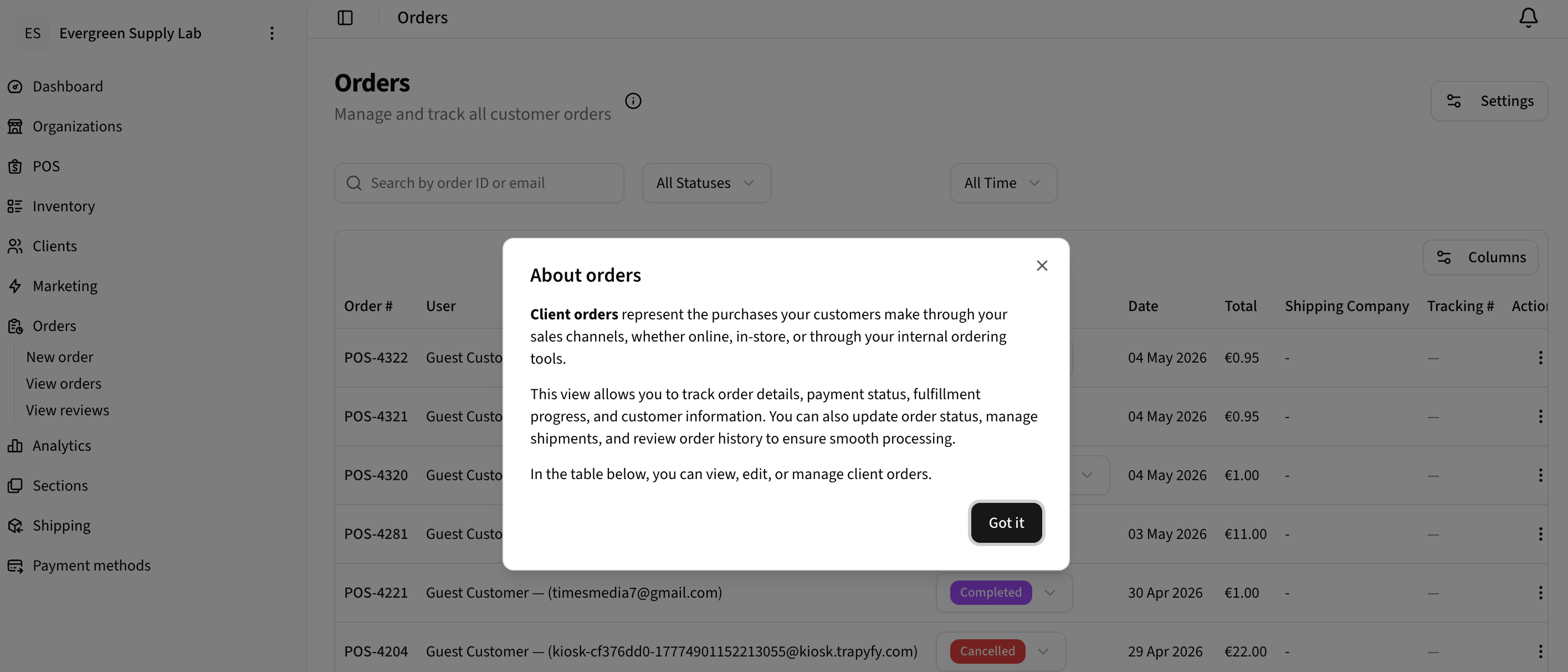
Orders represent purchases made through online, in-store, or internal sales channels.
Order statuses
Order statuses help merchants understand the current operational state of each order. Common statuses include:
| Status | Description |
|---|---|
| Pending payment | Order created, awaiting payment confirmation |
| Paid | Payment confirmed successfully |
| Completed | Order delivered and closed |
| Cancelled | Order cancelled by merchant or customer |
Merchants should review status transitions regularly to identify delays or operational issues.
Reviewing an order
Clicking an order opens the order detail page. The order detail includes client information, order ID and order number, cart ID, dropshipper where applicable, current status, and customer communication history. For POS-originated orders, POS checkout details such as cashier ID, store ID, and timestamp may also appear.
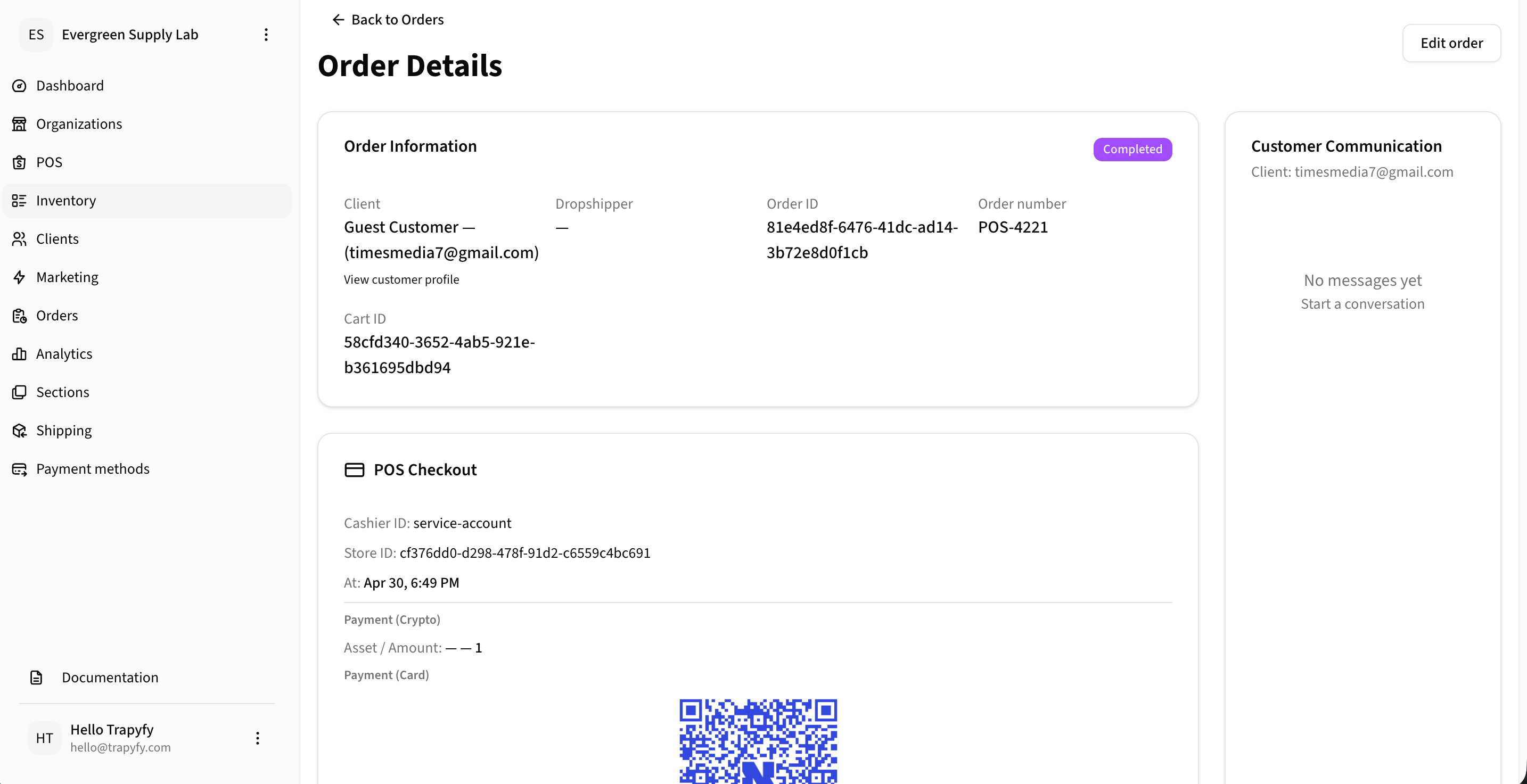
Open an order to review customer details, order identifiers, status, POS checkout information, and communication history.
The order detail also shows purchased products, quantities, unit prices, totals, and a fees breakdown where applicable. Staff and customer-visible notes can be added from within the order detail page.
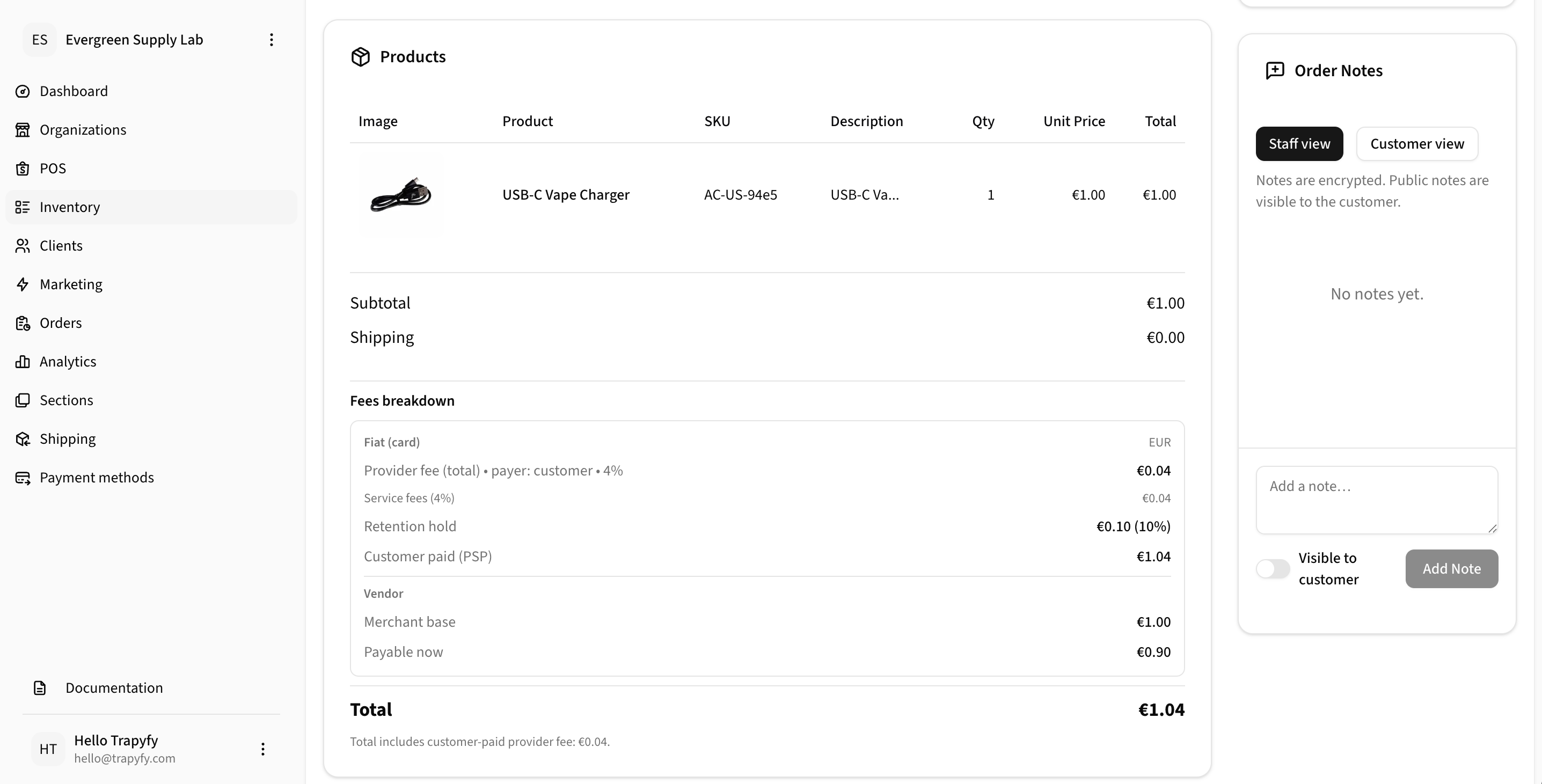
Order detail shows purchased products, totals, payment fee breakdown, and staff or customer-visible order notes.
Fee and payable amounts may vary by payment method, merchant agreement, and configuration. The fee examples shown are illustrative.
Shipping and payment information
Order detail may include shipping address, shipping method, shipping company, and payment method. Payment detail blocks depend on the payment method used for the order — not every order will show all payment sections.
Where Niftipay was used, crypto payment details may be visible including the asset, amount, and a QR code. Card payment details may include a payment link, PSP order ID, and a QR code where applicable. Staff can copy the payment link directly from the order detail page.
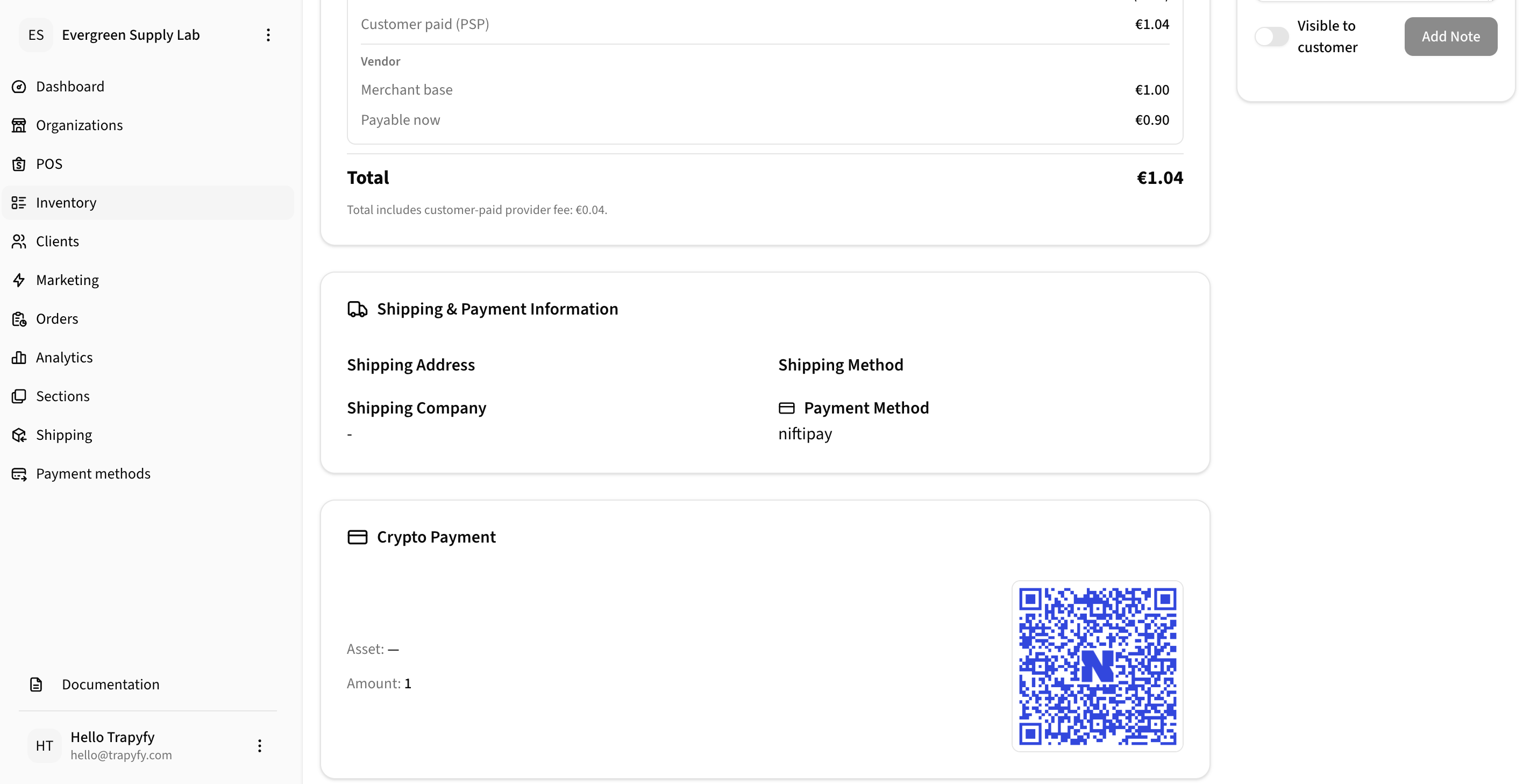
Shipping and payment information helps merchants confirm fulfillment details and review the payment method used for the order.
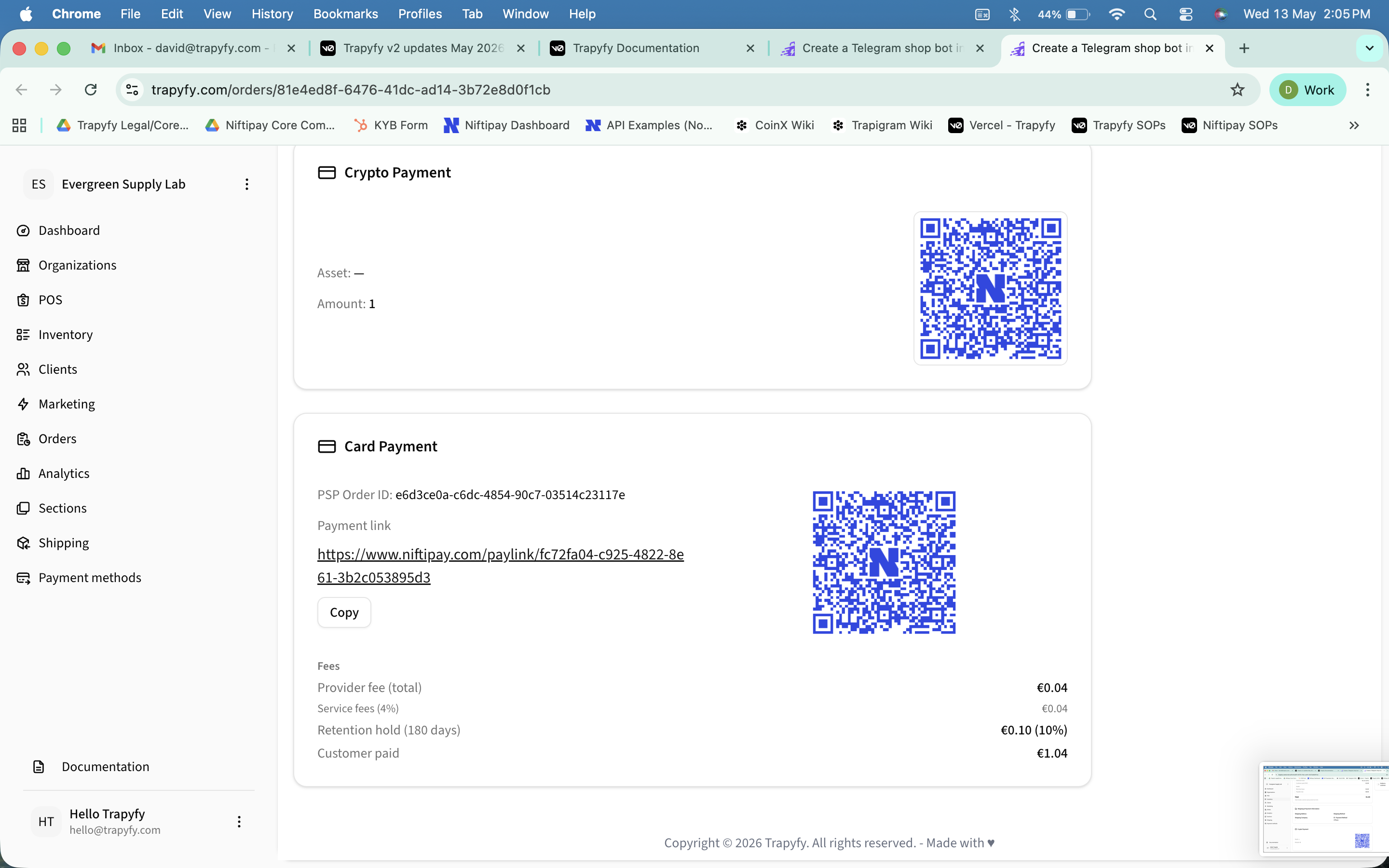
Where card payment is enabled, the order detail may show a payment link, QR code, PSP order ID, and fee breakdown. This section only appears when the order was processed through a card payment method.
Payment confirmation
Payment confirmation is the critical transition point between checkout and fulfillment. Before fulfillment begins, verify:
- Payment status shows confirmed
- Transaction ID is visible
- Order amount matches payment amount
- Order status transitioned correctly
Do not begin fulfillment without payment confirmation. This reduces disputes and chargebacks.
Payment processing is handled by Niftipay. For detailed transaction and settlement visibility, refer to Niftipay documentation.
Order settings
Order settings control organization-wide behavior related to orders and carts. Cart expiration duration determines how long a customer cart remains valid before it should be recreated or refreshed. Most stores keep carts for 3–14 days. Shorter durations may suit fast-moving promotions; longer durations may suit longer sales cycles. Settings should be adjusted carefully because they affect customer checkout behavior.
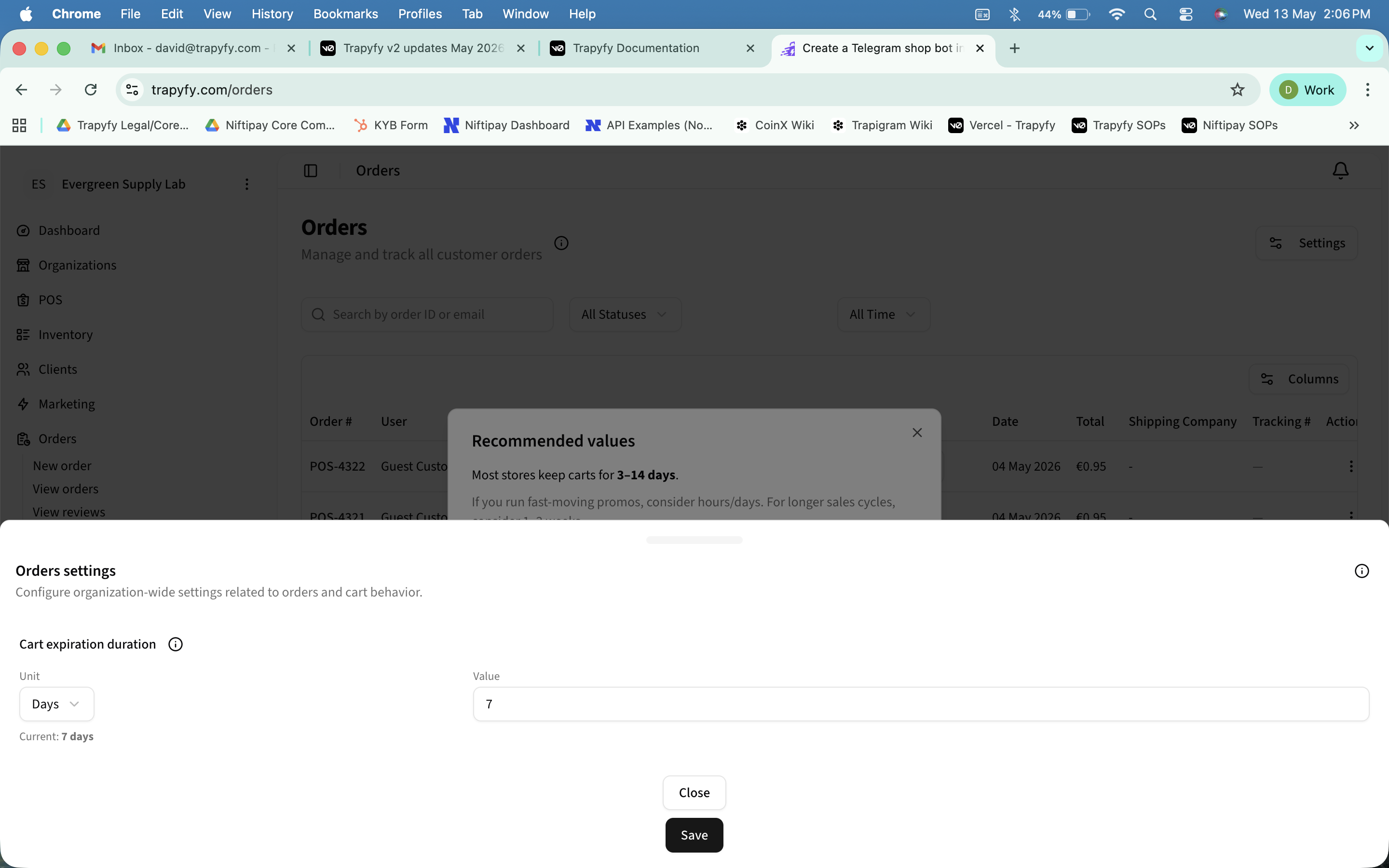
Use Order Settings to configure cart expiration duration and organization-wide order behavior.
Supplier orders
When resellers sell shared products, Trapyfy automatically creates supplier orders in the supplier's account. Supplier orders are separate from customer orders and use the "S-" prefix.
Supplier order basics
- Order ID: Prefixed with "S-" (e.g., S-12345)
- Pricing: Calculated using transfer cost, not retail price
- Quantity: Same as reseller's customer order
- Shipping: Supplier ships directly to customer address provided by reseller
- Stock: Reserved from supplier's warehouse when order becomes active
For detailed information about shared products and dropshipping workflows, see the Dropshipping & Shared Products page.
Fulfillment workflow
Fulfillment workflows help merchants process orders consistently and efficiently.
Order review
Verify order details and payment status
Inventory verification
Confirm stock availability for all items
Fulfillment preparation
Pack and prepare order for shipping
Shipment coordination
Arrange delivery or pickup. Shipping company and tracking number can be recorded on the order for fulfillment tracking and customer support reference.
Delivery confirmation
Mark order as fulfilled and complete
Automation and clear workflows help reduce manual operational overhead.
Customer notifications
Customer communication improves trust and reduces support requests. Customers should receive visibility into:
- Order confirmation
- Payment confirmation
- Fulfillment progress
- Delivery updates
- Order completion
Clear communication improves operational transparency.
Common mistakes
Fulfilling unpaid orders
Always confirm payment visibility before fulfillment begins.
Delayed order updates
Keeping order statuses current improves operational visibility.
No customer communication
Lack of customer communication may increase support requests.
Inventory mismatches
Inventory inaccuracies may disrupt fulfillment operations.
Manual workflows without visibility
Unstructured fulfillment processes may create operational bottlenecks.
Best practices
Review orders frequently
Frequent operational reviews help identify issues earlier.
Standardize fulfillment workflows
Consistent processes improve fulfillment reliability.
Monitor failed payments
Failed payments should be reviewed quickly to reduce revenue loss.
Keep customers informed
Operational transparency improves customer trust.
Related videos
Watch the onboarding and order workflow videos for a visual explanation of order management and fulfillment operations.
View Video LibraryRelated pages
Need help?
Email [email protected] with your merchant name, order reference, screenshots or error messages, and a short description of the issue.