Product & Catalog Management
Create, organize, price, and manage your product catalog in Trapyfy.
In plain words
A product is one thing you sell. A simple product has one price; a variable product has choices (sizes, colours) and each choice gets its own price and its own stock. This page is how you create them and keep them tidy.
What this is
The product catalog is where merchants define everything customers can browse and purchase. This includes product details, pricing, inventory levels, categorization, and visibility settings.
Watch this walkthrough for a quick overview of the workflow.
Product setup
Navigate to Inventory → View all products and click Add Product.
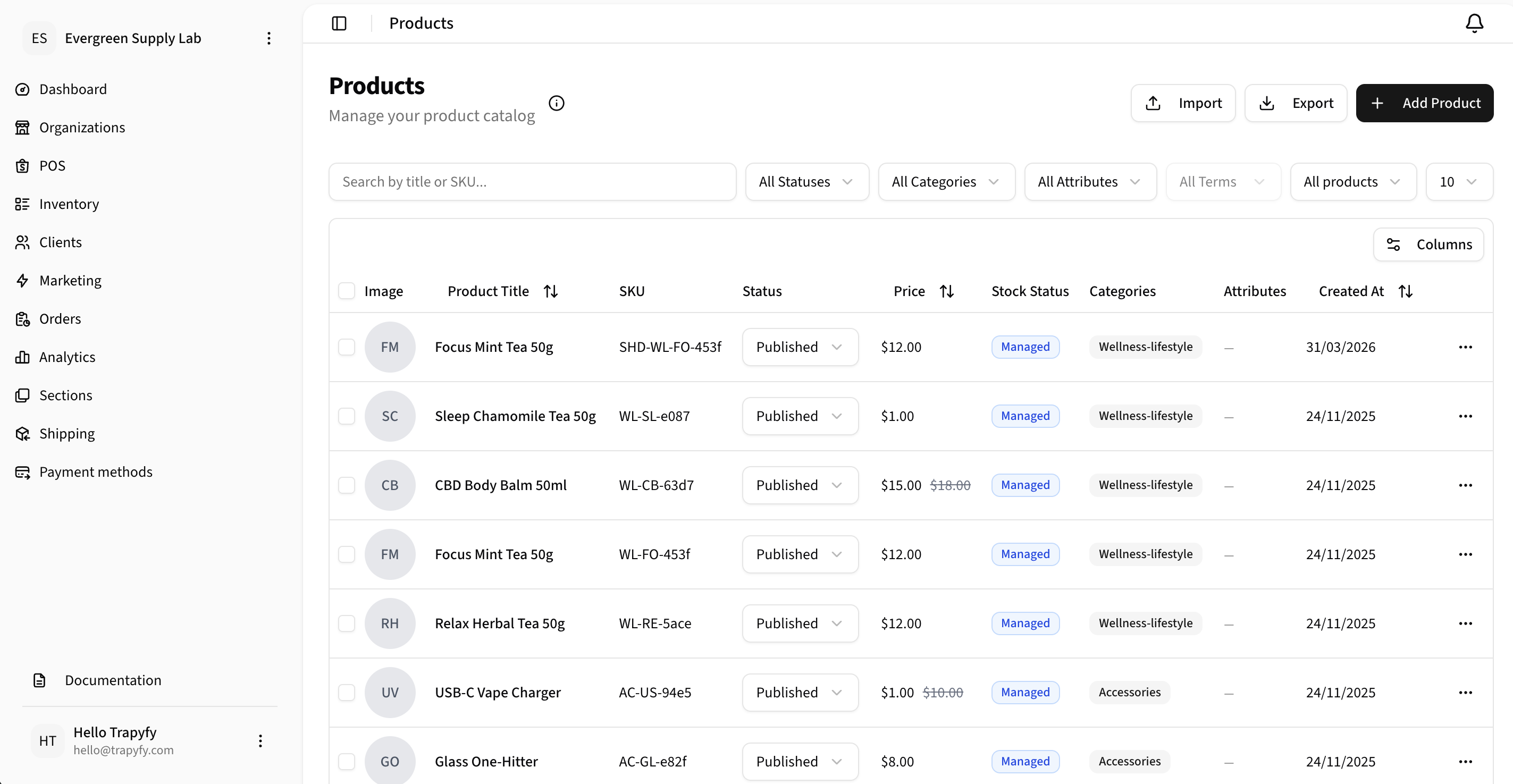
Use the Products list to review catalog items, status, SKU, pricing, stock status, categories, and product actions.
Creating a product
- Click Add Product
- Enter product title
- Select product type (Simple or Variable)
- Upload featured image
- Set SKU or leave blank to auto-generate
- Choose status: Draft or Published
- Click Create Product
Use Draft status while building products. Switch to Published when ready for customers.
Product information
Product setup is managed across these tabs in the product editor:
General tab
- Product title
- Description
- SKU
- Product type (Simple or Variable)
- Status (Draft or Published)
- Categories
- Images
Inventory tab
- Cost & Prices per country — regular price, sale price, and country-specific pricing
- Simple products have per-country prices set here directly
- Variable products may have per-country prices inside each variation
- Stock Quantities by Warehouse — warehouse and country stock quantities entered here
- Stock management toggle and backorder settings
Warehouses define where inventory can exist. Stock quantity values are entered against products in the product Inventory tab — not managed primarily from the Warehouse page.
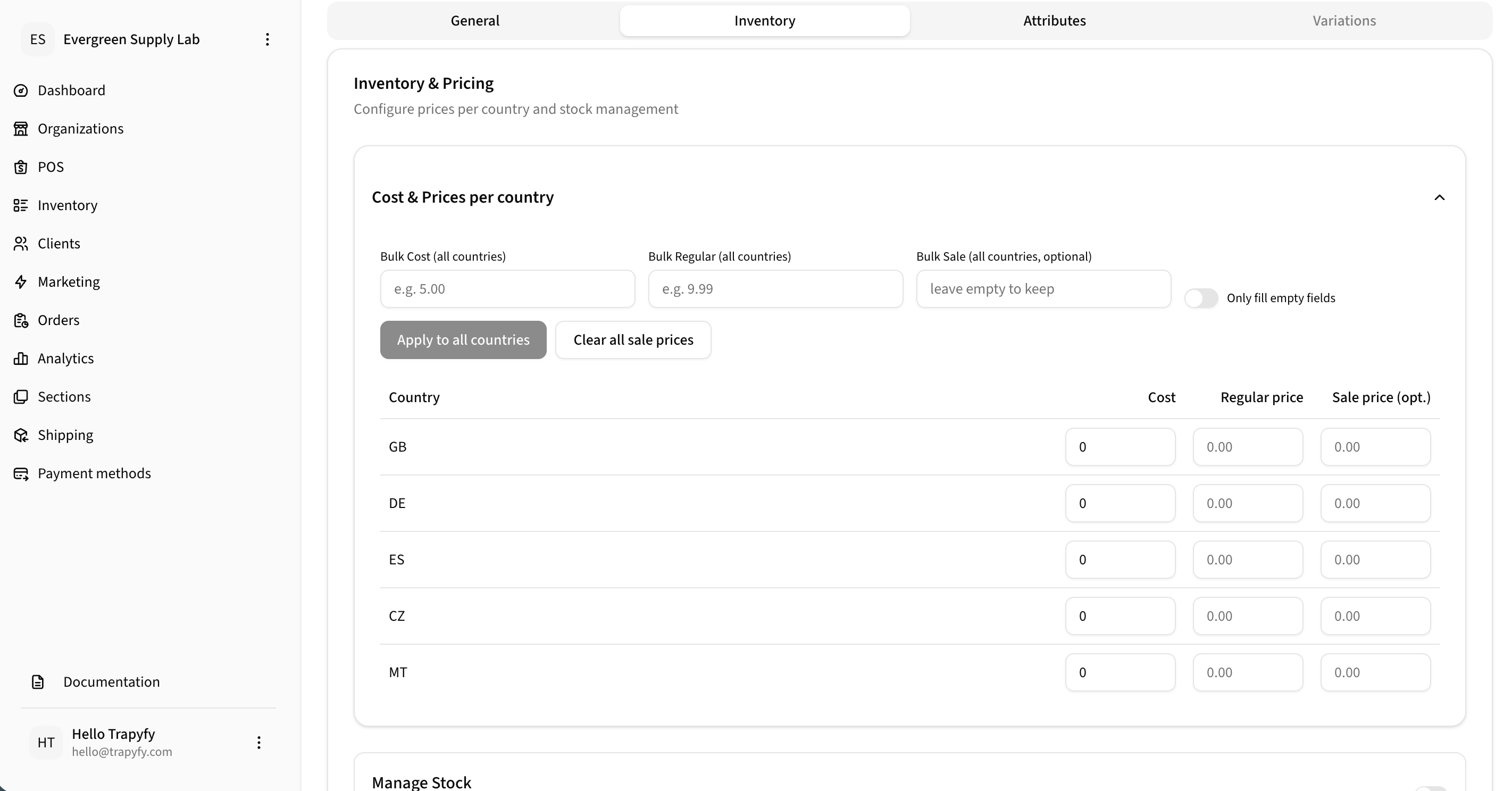
Use the Inventory tab to configure cost, regular price, and sale price by country.
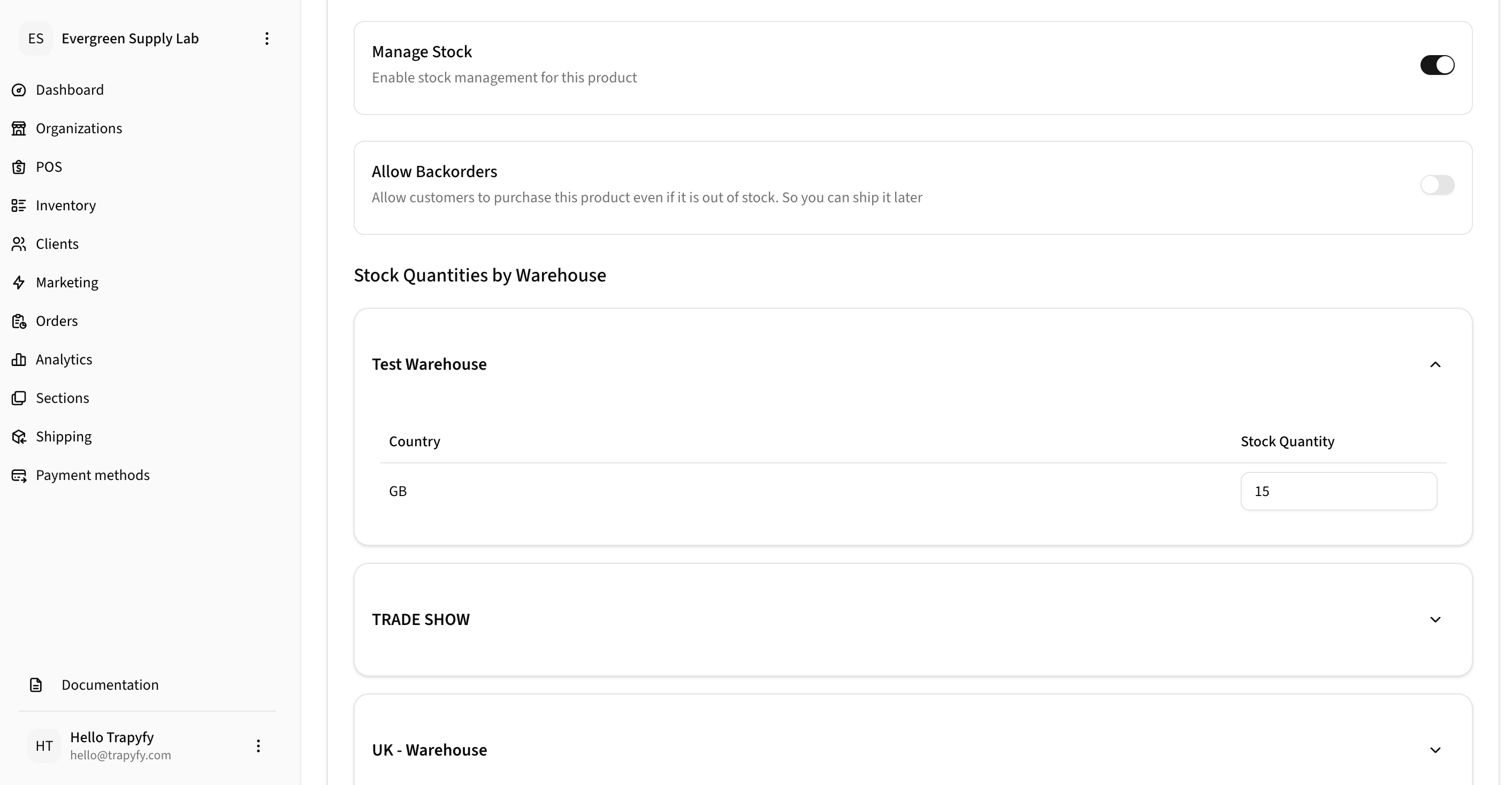
Stock quantities are entered inside the product Inventory tab under Stock Quantities by Warehouse.
Attributes tab
Define product option definitions such as size, color, format, package, or weight. Attributes are used for filtering and for building variations.
Variations tab
For variable products, variations are the purchasable combinations based on defined attributes. Each variation can have its own SKU, price, image, and stock behavior where applicable.
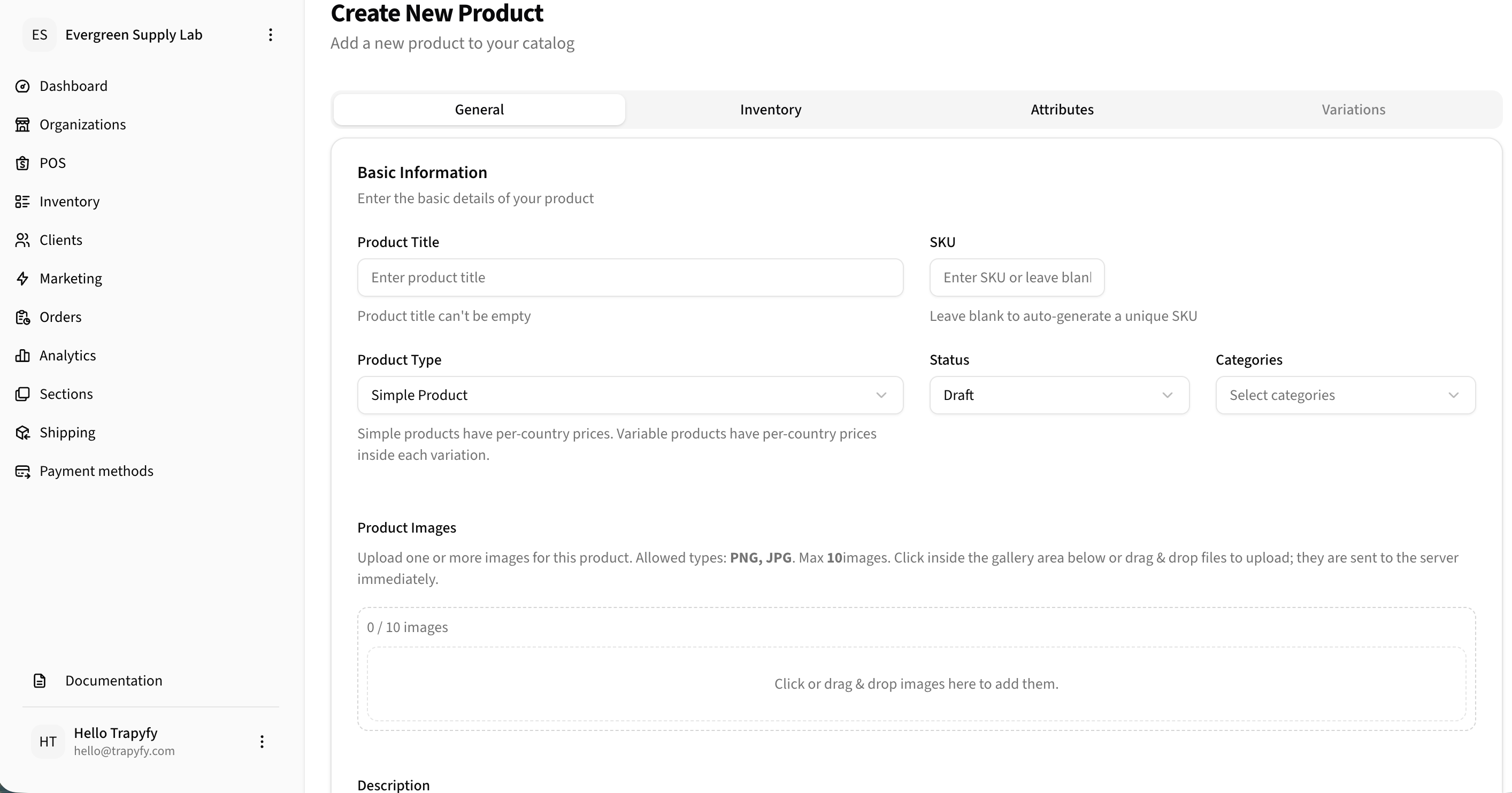
Create a new product from the General tab by entering the product title, SKU, product type, status, categories, and images.
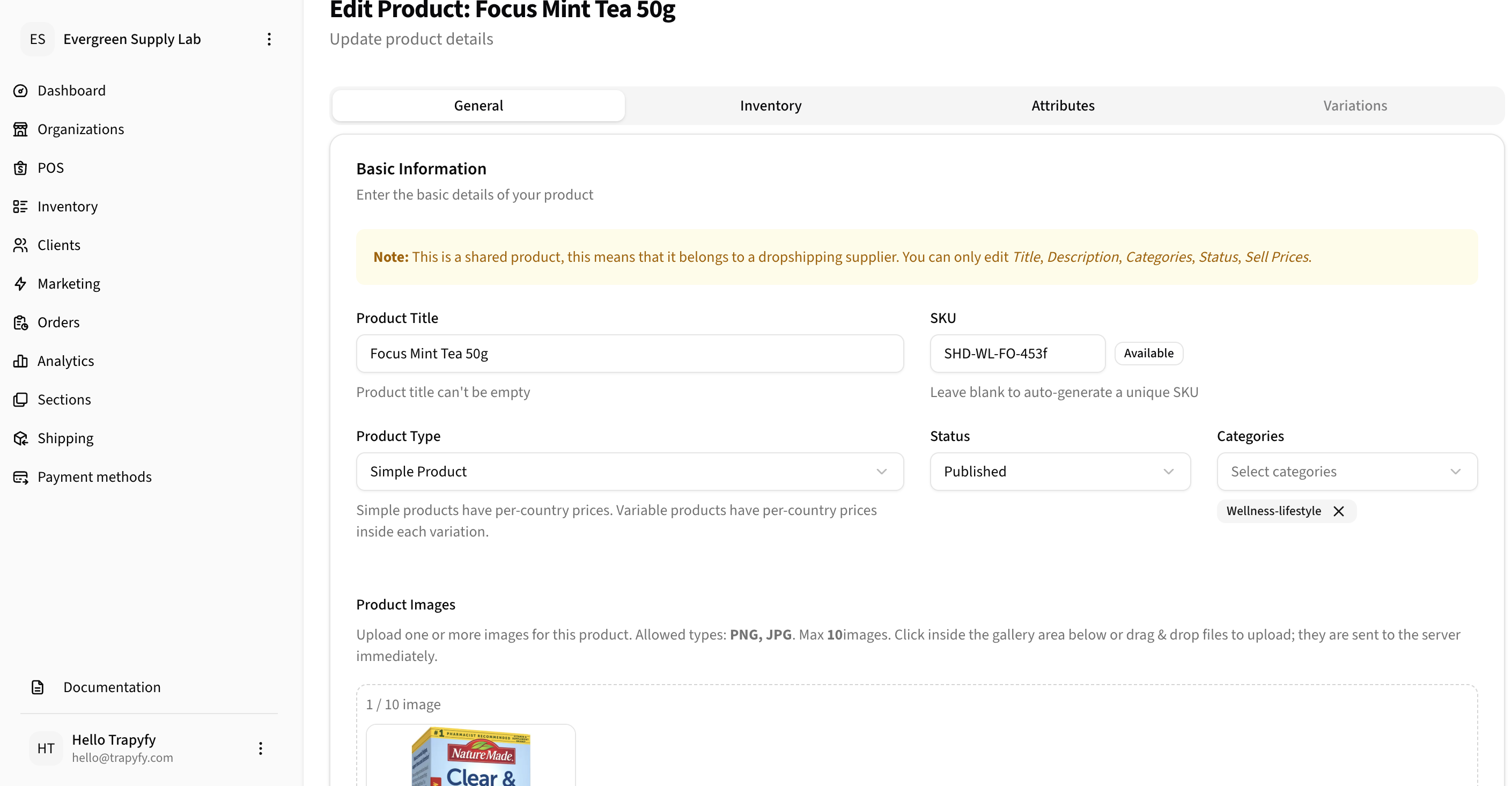
Shared products may restrict editable fields while still allowing customer-facing details such as title, description, categories, status, and sell prices.
Inventory visibility
Stock levels determine product availability in your storefront.
Stock management
- Enable Manage Stock toggle
- Set quantities per warehouse
- Configure country-level stock if applicable
- Enable backorders if needed
Products with zero stock and backorders disabled will not appear in your storefront.
Product organization
Categories
Assign products to categories for customer browsing. Products can belong to multiple categories.
- Search for existing categories (minimum 3 characters)
- Create new categories from the Categories page
- Products inherit parent category visibility
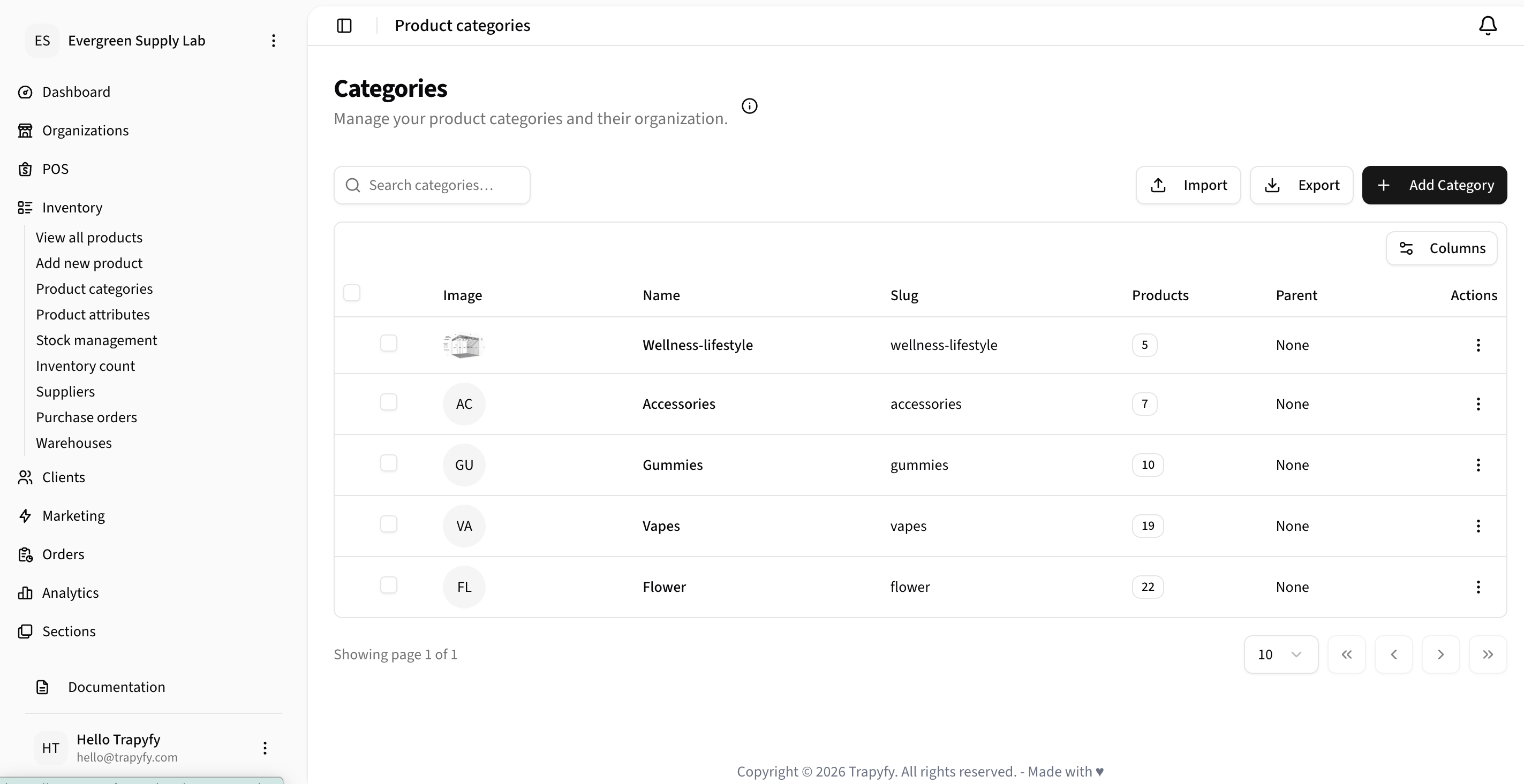
Use Product Categories to organize catalog browsing and group products by category.
Attributes
Attributes define reusable product options such as size, effect, weight, color, format, or package type. Each attribute has terms — the selectable values used when building variations. Attributes are managed under Inventory → Product attributes.
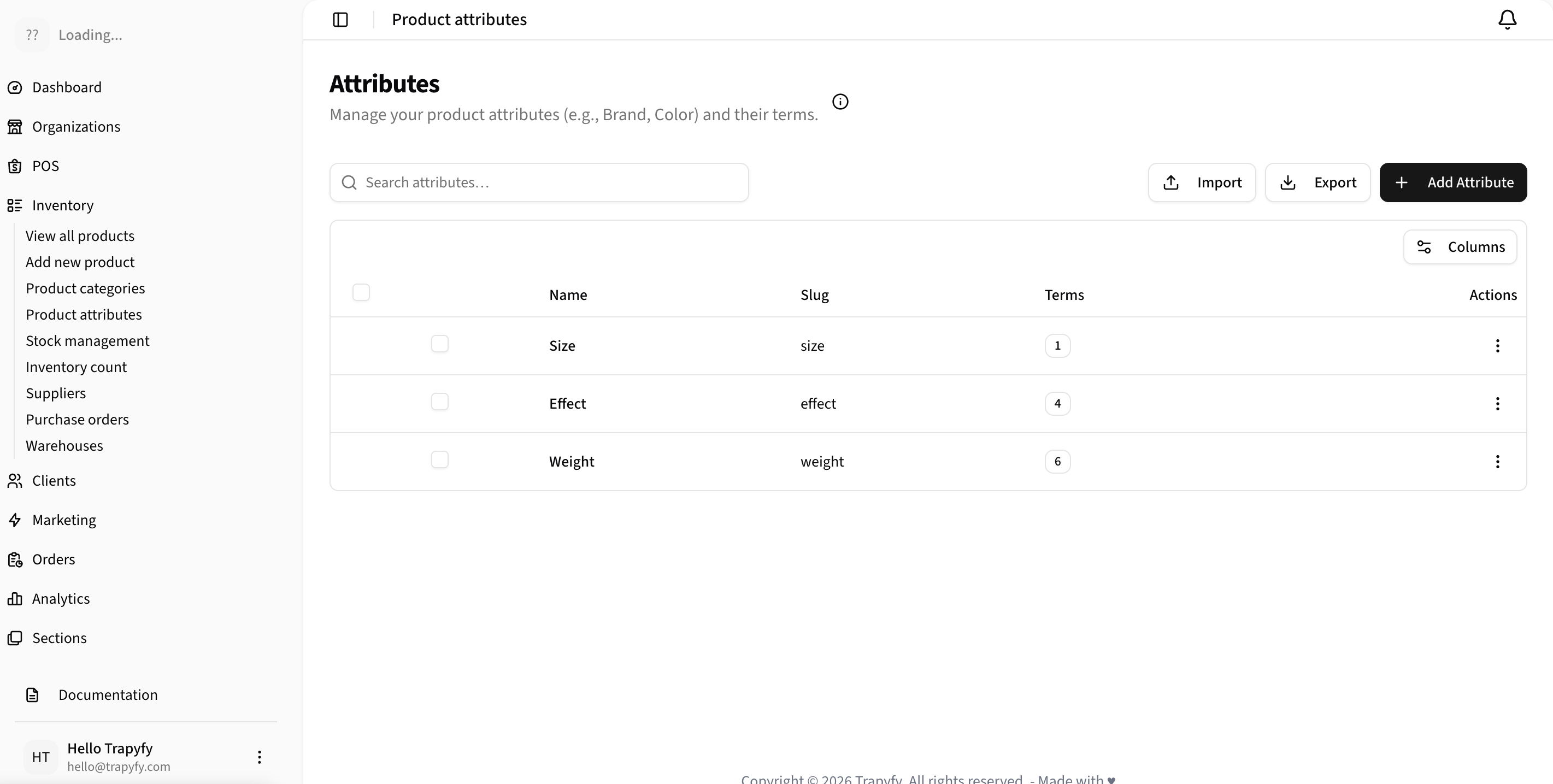
Attributes define reusable product options such as size, effect, weight, color, format, or package type.
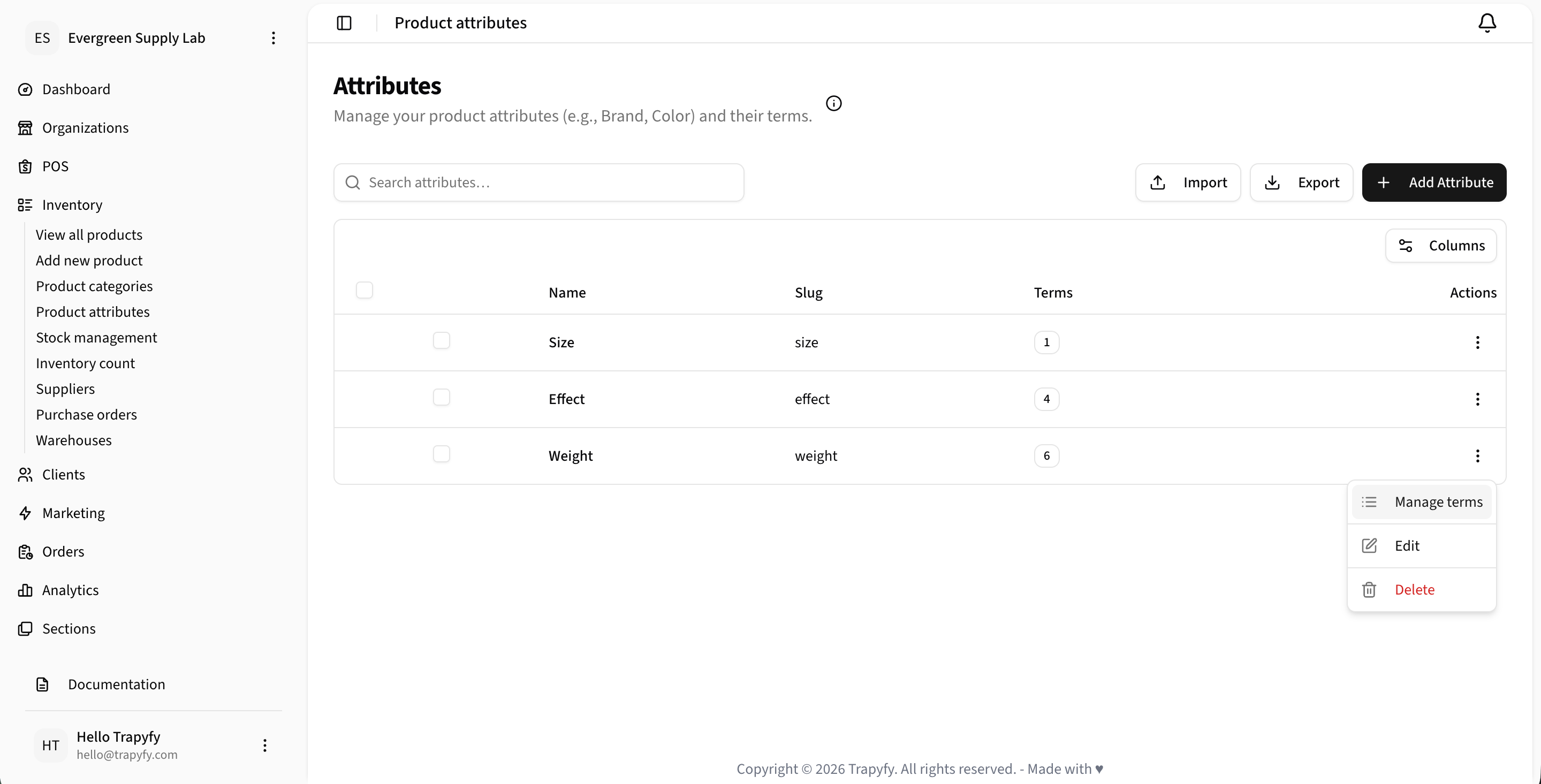
Use Manage terms to edit the selectable values available under an attribute.
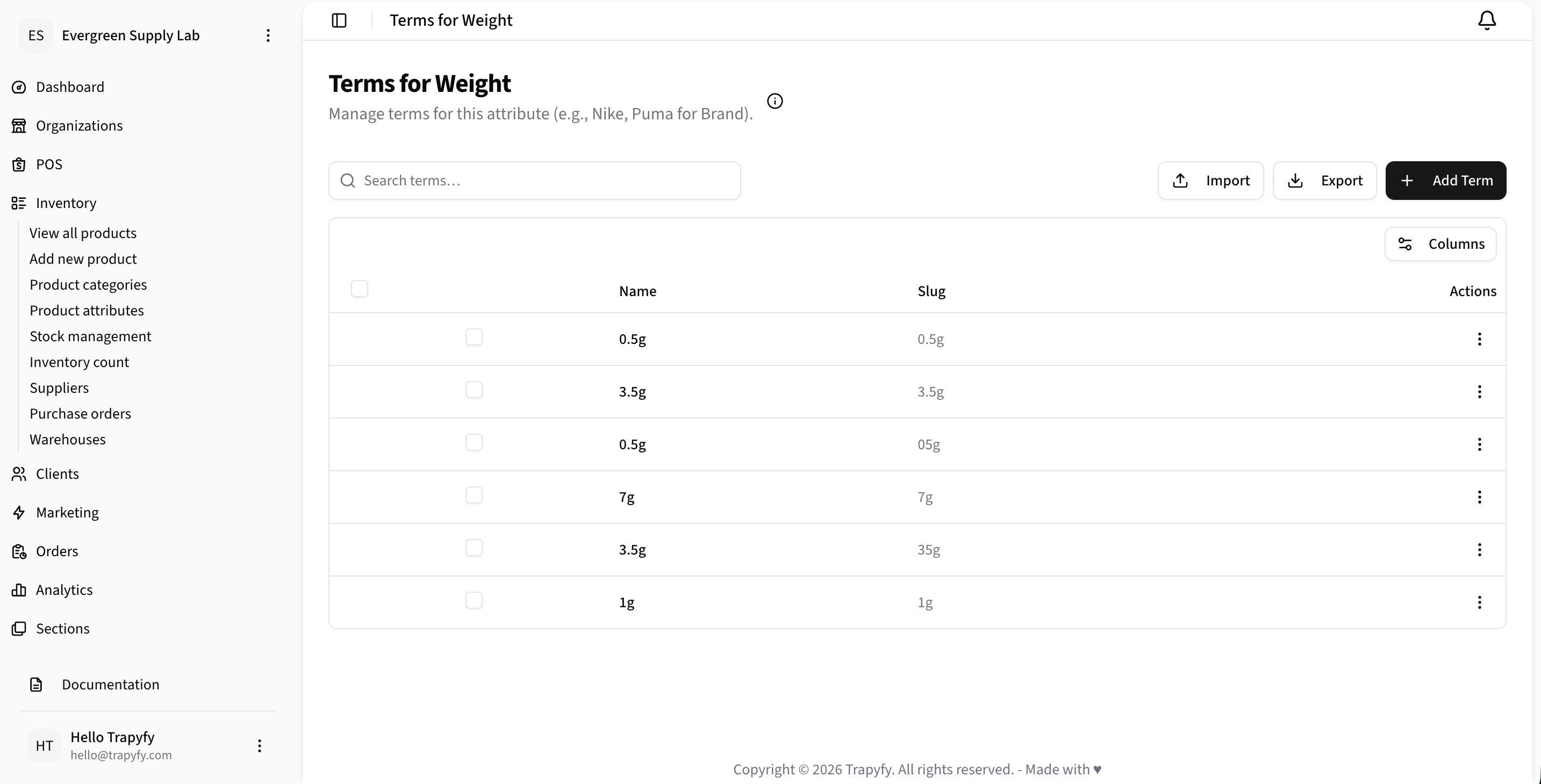
Terms are the selectable values inside an attribute and are used when building variations.
Product visibility
A product's visibility in any sales channel depends on its publication status, pricing, and stock conditions.
A product appears in the storefront, POS, or kiosk only when all of the following are true:
- The product is Published
- Pricing exists for the selected country
- Variation pricing exists where the selected variation requires it
- Stock exists in the relevant warehouse inside the product Inventory tab, if stock is managed
- The warehouse is assigned to the correct organisation and country
- The store, POS, or kiosk flow is using that warehouse and country context
| Condition | Result |
|---|---|
| Status: Draft | Hidden from all channels |
| Status: Published, no country pricing | Not purchasable in that country |
| Status: Published, no warehouse stock | Hidden or unavailable unless backorders enabled |
| Status: Published, pricing set, stock available | Visible and purchasable |
Shared products
Shared products are copies of supplier products that appear in a reseller's catalog. When a reseller accepts a warehouse share link from a supplier, the shared products are synced into their product list with an "SHD-" prefix in the SKU.
Editing shared products
Resellers can customize the title, description, categories, publish status, and retail pricing. Supplier-controlled fields (transfer cost, original product mapping, supplier stock) remain locked and cannot be edited by the reseller.
For complete information about shared product workflows and supplier order creation, see the Dropshipping & Shared Products guide.
Best practices
- •Use clear, descriptive product titles
- •Upload high-quality product images
- •Set up categories before adding products
- •Use consistent SKU naming conventions
- •Keep inventory levels accurate to avoid overselling
- •Use bulk pricing with "Apply to all countries" for efficiency
Common issues
Product is still Draft
Set product status to Published for it to be visible to customers.
No price exists for the selected country
Add pricing for the country in the product Inventory tab under Cost & Prices per country.
Variation price is missing
For variable products, check that each active variation has a price set for the relevant country.
Stock management is enabled but no quantity is assigned
Go to the product Inventory tab and enter stock quantity under Stock Quantities by Warehouse.
Quantity is assigned to the wrong warehouse
Confirm the warehouse being used by the store or kiosk matches the warehouse where quantity is assigned.
Warehouse is not assigned to the correct country
Open the warehouse and confirm the correct country is assigned to it.
Product category is missing or unclear
Assign the product to at least one category so customers can find it through the bot menu.
Variation exists but variation pricing or stock is incomplete
Check each variation in the Variations tab to confirm pricing and stock are complete.
Tier pricing rule is active but not scoped to the correct country, product, or variation
Review the tier pricing rule in Marketing → Tier pricing and confirm it targets the intended country and product scope.
Related videos
See how products appear to customers during checkout.
Related pages
Need help?
Email [email protected] with your merchant name, store or product reference, screenshots or error messages, and a short description of the issue.