
Sections
Sections are configurable content blocks used by the customer-facing bot and menu. They control the informational pages and flows your customers see when interacting with your storefront bot.
In plain words
Sections are the little information pages your bot can show — an intro, a help page, FAQs, your rules. You write them once and the bot shows them as menu buttons, so you are not answering the same question thirty times a week.
What sections are
Each section represents a named content block that the bot can display to customers. Sections can be made visible or hidden, given a display order, nested under parent sections, and edited with rich text content and placeholder variables.
Intro
Welcome message shown when customers first open the bot
Help
Instructions for navigating the bot and placing orders
FAQs
Frequently asked questions displayed on request
Coupons
Coupon information and current discount codes
Services
Details about available services
Affiliates
Affiliate programme information and stats
Gift cards
Gift card purchase and redemption info
Reviews
Customer reviews and summary shown in bot
User guide
Step-by-step guide to using the bot
Settings
Customer-facing settings and preferences
Sections list
Go to Sections in the sidebar to view all sections. The table shows each section's title, slug name, order, visibility status, and last updated date. Click the actions menu on any row to edit or delete a section.
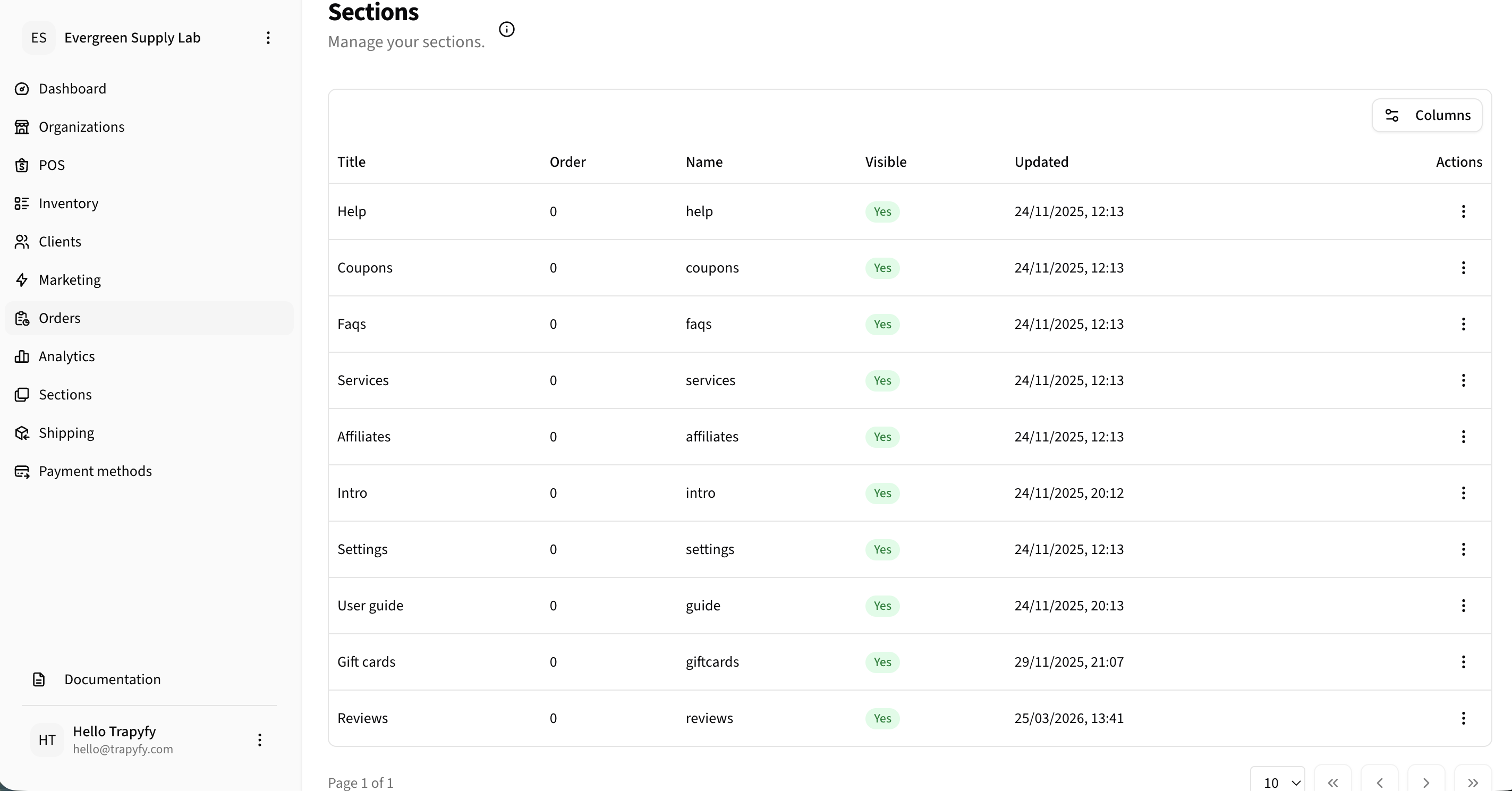
Use the Sections list to manage all content blocks, control visibility, display order, and nesting. Click actions to edit or delete sections.
Editing a section
Click Edit on any section to open the section editor. Fields available:
When disabled, this section is hidden from the bot entirely. Toggle visibility without deleting the section.
The display name of the section, shown in the bot menu.
Controls the display order of this section in the bot menu. Lower numbers appear first.
Optionally nest this section under a parent to create sub-menus. Set to None for a top-level section.
Rich text content displayed to customers. Supports bold, italic, lists, links, and placeholder variables.
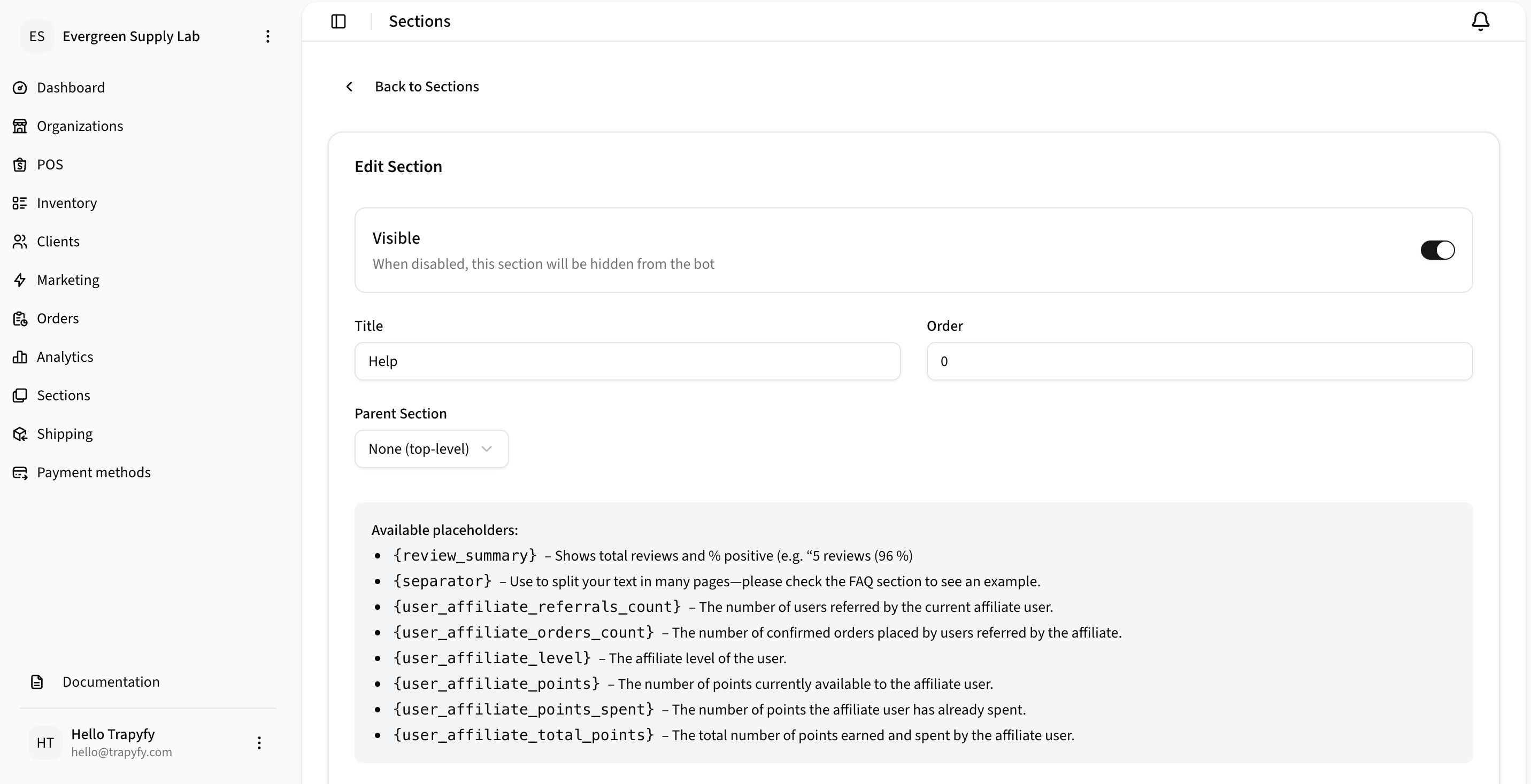
Placeholder variables
Sections support placeholder variables that are dynamically replaced with live data when the bot displays the content. Available placeholders are listed inside the editor.
Shows total reviews and percentage positive — e.g. '5 reviews (96%)'.
Splits text across multiple bot messages. Check the FAQ section for a usage example.
The number of users referred by the current affiliate user.
The number of confirmed orders placed by users referred by this affiliate.
The affiliate level of the user.
The number of points currently available to the affiliate user.
The number of points the affiliate user has already spent.
The total number of points ever earned and spent by the affiliate user.
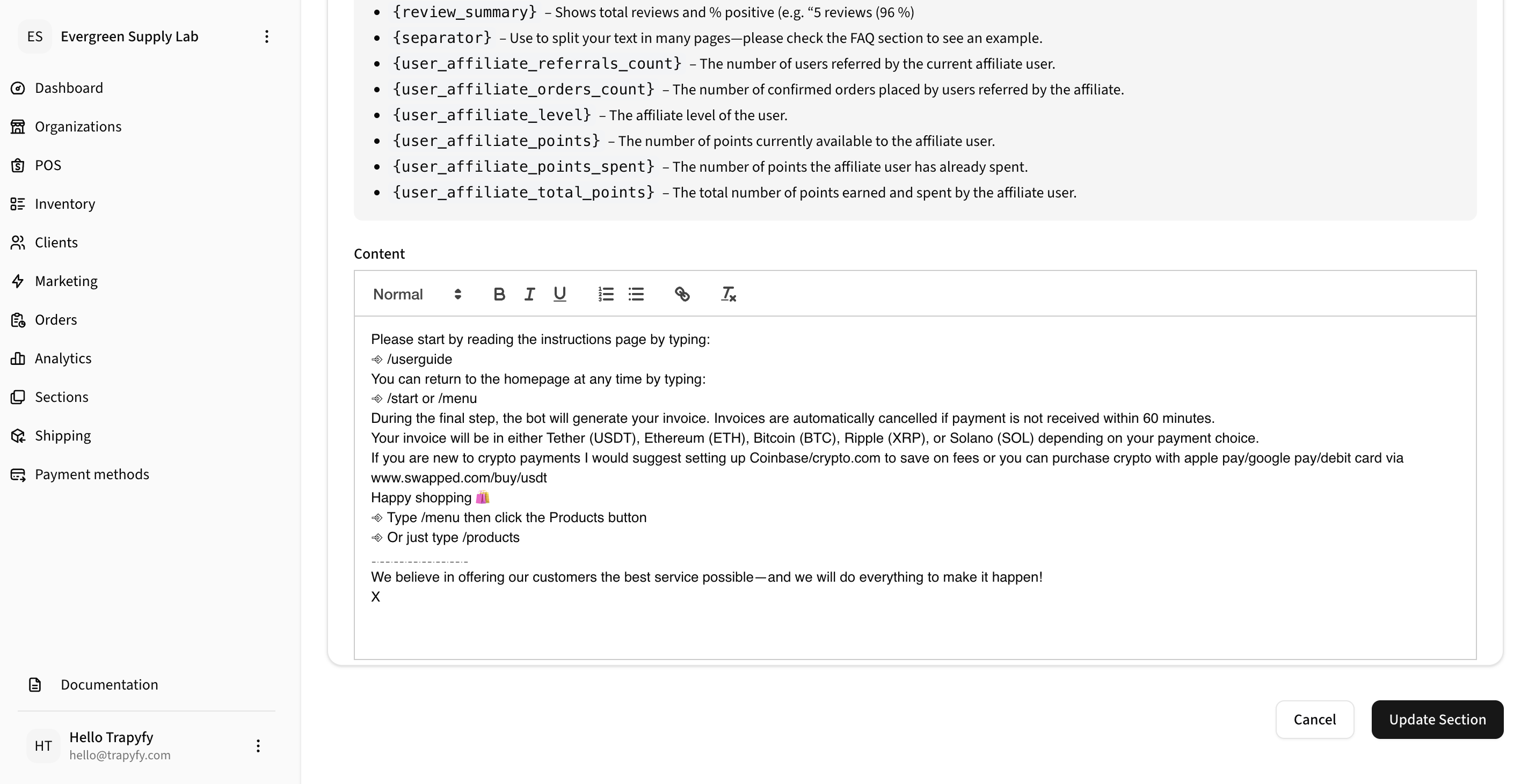
Use {separator} to split long content across multiple bot messages. This improves readability in messaging interfaces.
Key behaviours
Visibility toggle
Hiding a section removes it from the bot without deleting it. Re-enable it at any time by toggling visibility back on.
Section ordering
The Order field controls the display sequence in the bot menu. Sections with the same order value are sorted alphabetically.
Parent sections
Set a Parent Section to nest content under a top-level menu item, creating sub-menus for more complex bot flows.
Rich text content
The content editor supports bold, italic, underline, strikethrough, lists, blockquotes, and links — rendered appropriately by the bot.