
Warehouses
Warehouses are inventory locations or operational stock pools in Trapyfy. They connect your products to specific countries, stores, POS registers, and kiosk deployments.
In plain words
A warehouse is a place where your stock physically sits — a room, a shop, a shelf at a partner. Trapyfy needs to know which places exist, and which countries each place serves, before it can tell a customer whether you can actually ship to them.
What warehouses are
A warehouse in Trapyfy represents any named stock location or pool. This can be a physical retail location, a regional distribution centre, a shared stock pool, or a temporary inventory allocation for an event or trade show.
Warehouse list
Navigate to Inventory → Warehouses to view all warehouses. The table shows each warehouse's ID, name, assigned organisations, and country.
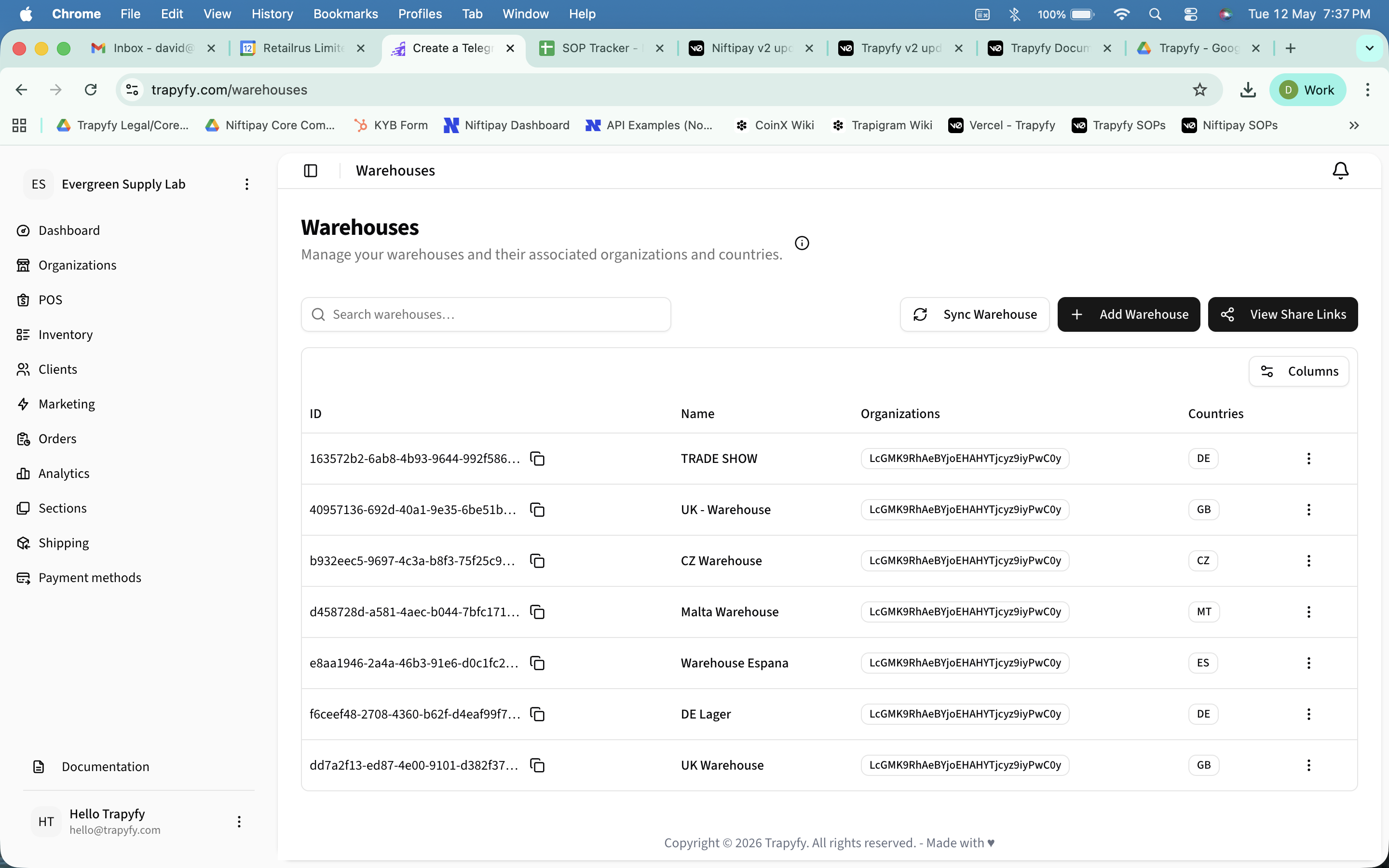
Use the three-dot actions menu on each row to edit or delete a warehouse. The Sync Warehouse button refreshes inventory from connected integrations where applicable.
Creating a warehouse
Click Add Warehouse to open the creation form. Complete the following fields:
A clear, recognisable label for the warehouse — e.g. UK Warehouse, TRADE SHOW, DE Lager.
Select which organisations this warehouse belongs to. Warehouses are scoped to their assigned organisations.
Assign one or more countries to the warehouse. Country assignment controls which pricing, stock, and sales flows this warehouse is available for.
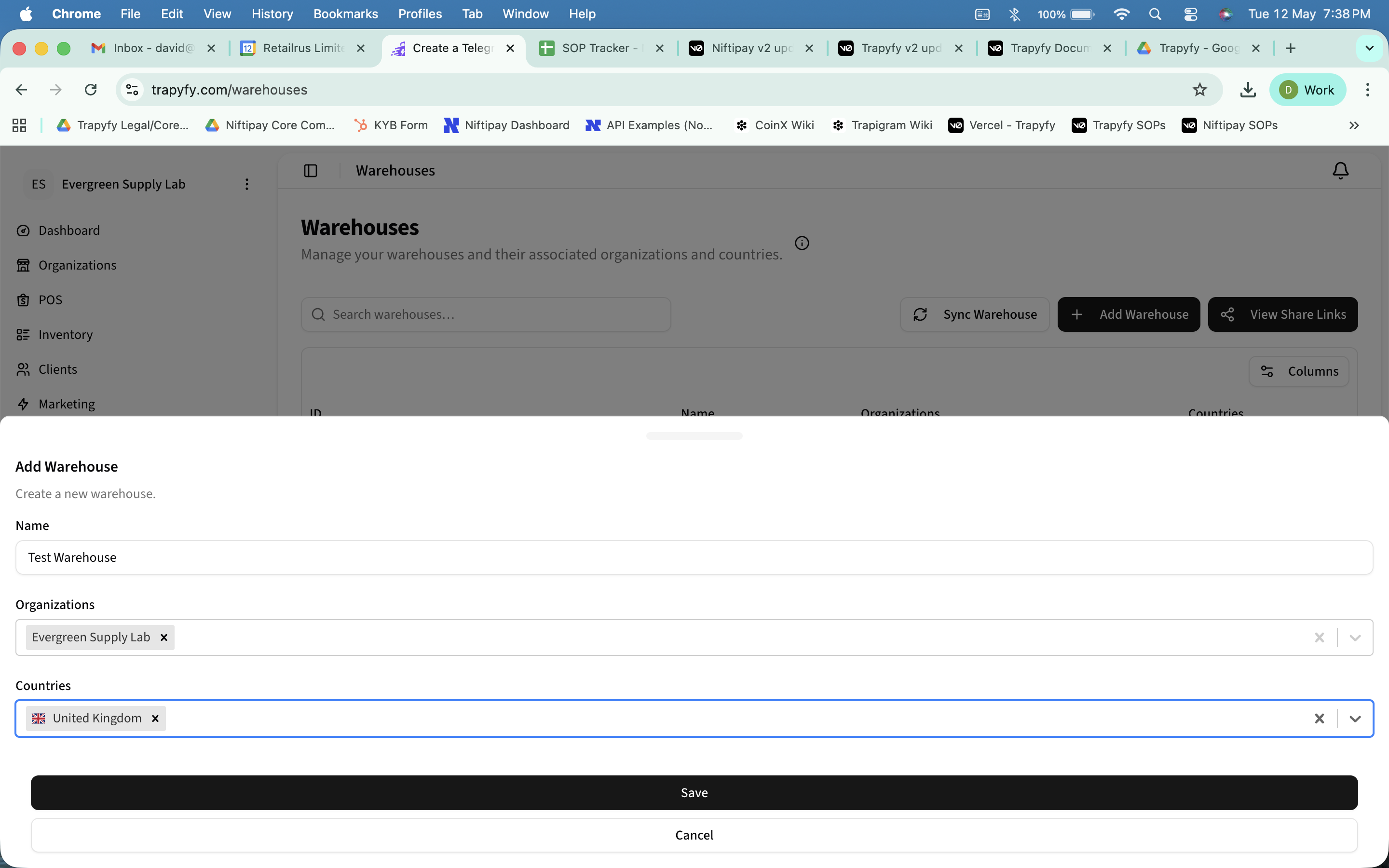
Click Save to create the warehouse. It will immediately appear in the warehouses list and become available for product stock assignment.
Organisation assignment
Warehouses are assigned to one or more organisations. This controls which merchant accounts and teams can manage stock in that warehouse. Most merchants will assign all warehouses to their primary organisation.
A warehouse must have at least one organisation assigned. Unassigned warehouses will not appear in product inventory or store configuration.
Country assignment
Each warehouse is assigned to one or more countries. Country assignment determines which stores, POS registers, and kiosks can use that warehouse, and which country-specific pricing and stock levels are applied.
- •A store or kiosk configured for Germany (DE) will use a warehouse assigned to DE.
- •Products must have pricing set for the same country as the warehouse to appear in that sales flow.
- •Stock quantities are tracked per warehouse, so the same product can have different availability in different countries.
Warehouse stock
Warehouses define where inventory can be stored and fulfilled from. Stock quantities are assigned from inside each product using the product Inventory tab and Stock Quantities by Warehouse section.
Recommended workflow:
- Create or confirm the warehouse.
- Assign the warehouse to the correct organisation.
- Assign the warehouse to the correct country or countries.
- Open the relevant product.
- Go to the product Inventory tab.
- Enter stock quantity under Stock Quantities by Warehouse.
- Save the product.
Product visibility logic
A product only appears in a POS, kiosk, or storefront flow when all four conditions are met:
- • The product is published
- • Pricing is configured for the selected country
- • Stock is available in the selected warehouse (if stock is managed)
- • The store or kiosk is configured to use that warehouse and country
Event and trade show warehouses
Warehouses can represent temporary inventory allocations for events or trade shows. Create a dedicated warehouse for each event — for example, TRADE SHOW assigned to the relevant country — then allocate specific product stock to that warehouse before the event.
Configure your kiosk or POS store to use the event warehouse and country. Only products with stock in that warehouse will be available at the event. This keeps event inventory separate from your main stock and prevents overselling.
See the POS and Kiosk guide for the full trade show setup walkthrough, including warehouse selection and device pairing.
Warehouse share links
Share links allow you to share specific products from a warehouse with named recipients. Click View Share Links on the Warehouses page to manage all created share links. Warehouse share links power dropshipping and reseller workflows by enabling suppliers to share inventory with resellers while maintaining transparent transfer costs and stock tracking.
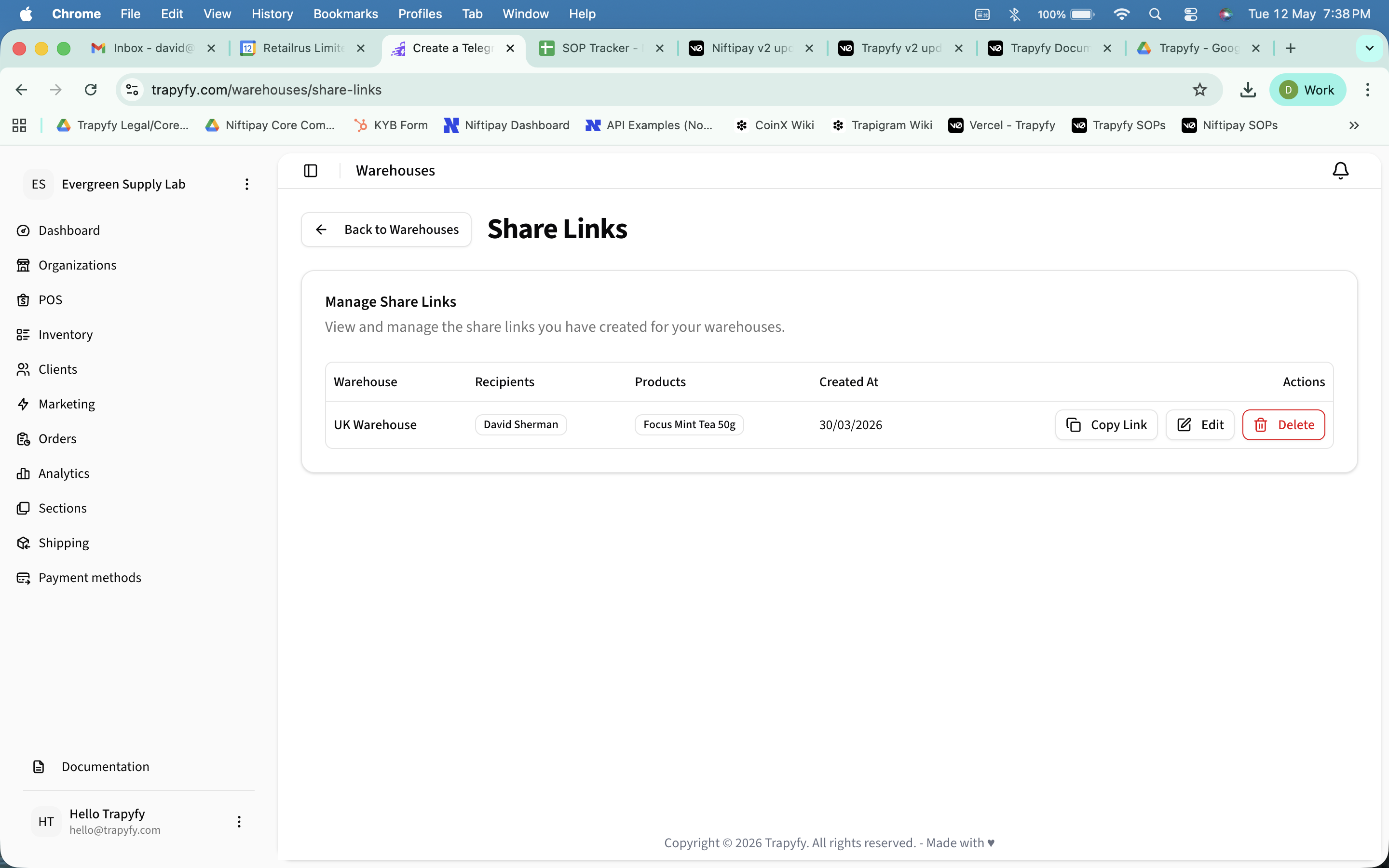
Each share link shows the warehouse, recipient, associated products, and creation date. Use Copy Link to share, Edit to update recipients or products, or Delete to revoke access.
For complete information about setting up and managing shared products, see the Dropshipping & Shared Products guide.
Related pages
Need help?
Email [email protected] with your merchant name, warehouse or store reference, screenshots or error messages, and a short description of the issue.