
Dropshipping & Shared Products
Enable resellers and dropshippers to source inventory from suppliers and build their own product catalogs using shared warehouse stock.
In plain words
Dropshipping means selling something you do not have in your own room. Someone else holds the stock and ships it; you list it, take the order and take your margin. Shared products are how the owner of the stock lets you list it.
What shared products are
Trapyfy supports collaborative supply chain workflows where suppliers share their inventory and product listings with resellers or dropshippers. Shared products allow one organization to offer another organization's inventory under their own brand while maintaining transparent cost and stock tracking.
The organization that owns the original products and warehouse inventory. Suppliers set transfer costs and share product selections with resellers.
The organization that accepts shared products from a supplier. Resellers sell the shared products to customers under their own storefront while the supplier fulfills orders.
A copy of a supplier's product that appears in the reseller's catalog. Shared products are prefixed with "SHD-" in the SKU and link back to the supplier's original product.
The supplier-defined wholesale price per shared product and country. The reseller sells at their own retail price and keeps the difference.
Shared products automate supplier order creation and payment reconciliation, making multi-tier supply chains transparent and scalable.
Core workflow
The shared product workflow follows these steps:
Create a warehouse share link
Supplier navigates to Warehouses → View Share Links and creates a new share link targeting specific reseller organizations.
Select products and transfer costs
Supplier selects which products to share and defines a transfer cost per product and country.
Share the link
Supplier copies the share link and sends it to the reseller organization.
Reseller accepts the link
Reseller accepts the share link, triggering automatic product sync into their catalog.
Shared products appear in reseller catalog
Synced products appear in the reseller's product list with "SHD-" prefix in the SKU. Reseller can edit title, description, categories, pricing, and status.
Reseller sells the product
Customer buys from the reseller's storefront at the reseller's retail price.
Supplier order is created
Trapyfy automatically creates a supplier order (S-prefixed) in the supplier's account for the same quantity.
Supplier stock is reserved
Stock is decremented from the supplier's warehouse. Supplier fulfills to the customer address.
Reseller and supplier track payables
Analytics track supplier payables (amount owed to supplier) and reseller margin (retail price minus transfer cost).
Multi-tier supply chains
Products can move through multiple organizations in a supply chain. For example:
Organization C (Retailer) sources from Organization B (Reseller)
Organization B (Reseller) sources from Organization A (Supplier)
↓
Customer buys from Org C → Org C's order is paid by customer
Org C sends supplier order (S-) to Org B at transfer cost B
Org B sends supplier order (S-) to Org A at transfer cost A
Org A fulfills to customer and tracks payables from both B and C
Trapyfy automatically creates supplier orders up the chain, making payment reconciliation transparent across all tiers.
Shared product editing
Resellers can customize shared products for their audience, but certain fields remain locked to maintain supplier control and accuracy.
Reseller can edit:
- Product title (for reseller's branding)
- Product description (for reseller's audience)
- Categories (for reseller's taxonomy)
- Publication status (publish/unpublish in reseller's store)
- Retail sell prices (reseller sets their own margins)
Supplier controls (locked):
- Original product mapping (link back to supplier's product)
- Transfer cost per country
- SKU prefix (SHD-xxx remains unchanged)
- Supplier stock and warehouse relationship
- Product images (can be replaced by reseller)
When editing shared products, a warning banner appears reminding the reseller that certain fields are supplier-controlled and cannot be changed.
Supplier orders
When a reseller sells a shared product, Trapyfy automatically creates a supplier order in the supplier's account. Supplier orders use the "S-" prefix and are completely separate from the reseller's customer order.
Supplier order details:
- Order ID: Prefixed with "S-" (e.g., S-12345)
- Pricing: Uses transfer cost, not retail price
- Quantity: Same as reseller's customer order
- Shipping: Supplier ships directly to the end customer address
- Stock reservation: Supplier stock is automatically reserved when the reseller's order becomes active
Order cancellation and refunds:
- If the reseller cancels the customer order, the supplier order is also cancelled
- Stock is released back to the supplier's inventory
- Reseller's refund processing includes releasing payables to the supplier
For detailed supplier order tracking and fulfillment, see the Order Lifecycle page.
Analytics and supplier tracking
Dropshipping analytics help merchants track supplier payables, margin analysis, and payment reconciliation.
Supplier payables:
Shows the total amount owed to suppliers based on completed and pending supplier orders. Payables are calculated using transfer costs, not retail prices.
Reseller margin:
Calculated as the difference between retail price (what customer paid) and transfer cost (what reseller owes supplier). Margin shows reseller profitability per transaction.
Dropshipping revenue filter:
Analytics can distinguish between direct retail revenue and revenue from resellers/dropshippers. Helps identify supplier vs reseller performance.
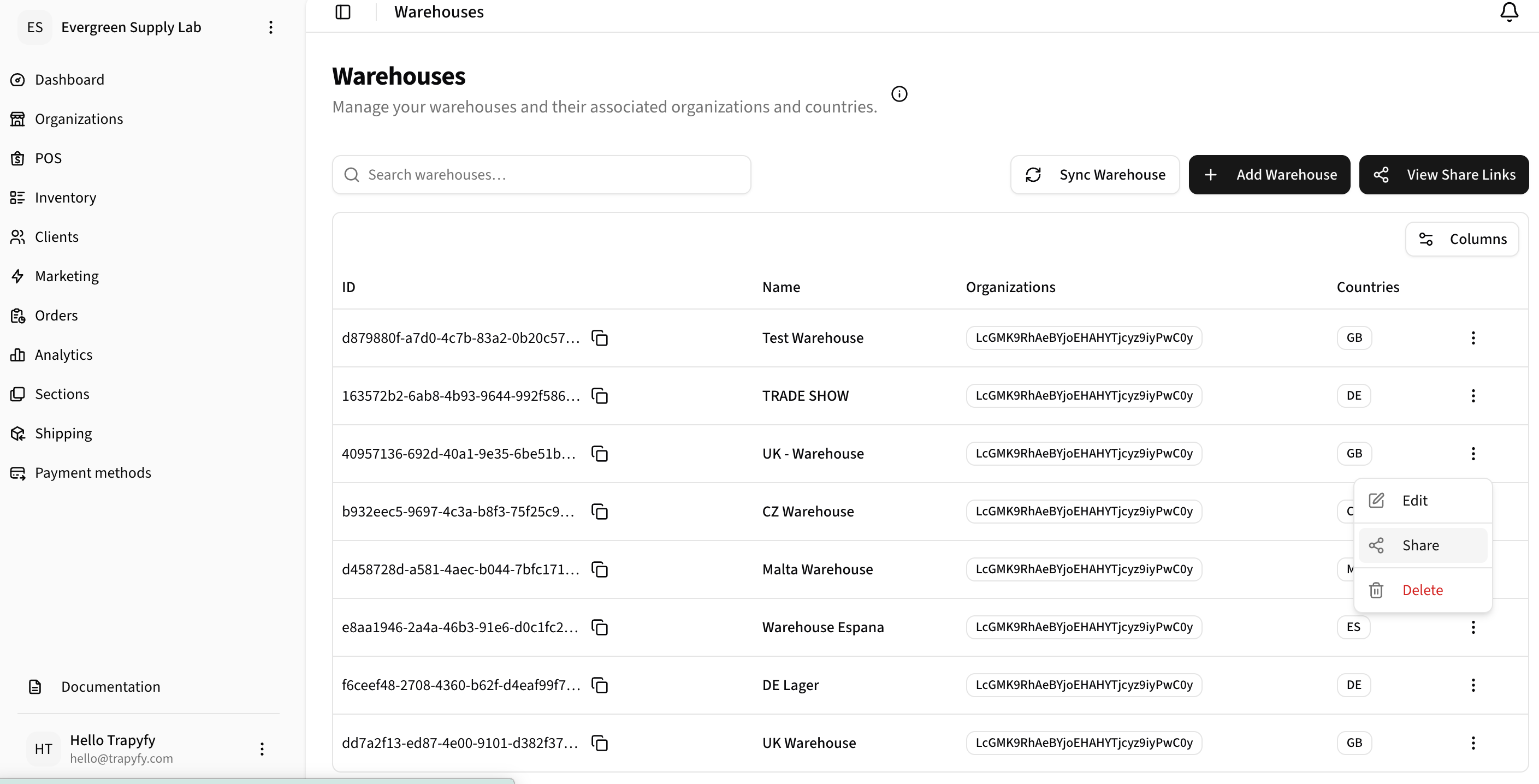
Use the Share action from a warehouse to start sharing products with another retailer or partner.
Creating a warehouse share link
Suppliers use warehouse share links to send inventory to resellers. Navigate to Inventory → Warehouses → View Share Links and click Create Share Link.
Select the warehouse to share. This warehouse must have the products you want to share in stock.
Select the reseller organizations that can access this share link. You can select one or more organizations.
Select which products from the warehouse to share. You can include specific variations or the entire product.
Set the wholesale price per product and country. Resellers will see this as the cost they owe you per sale.
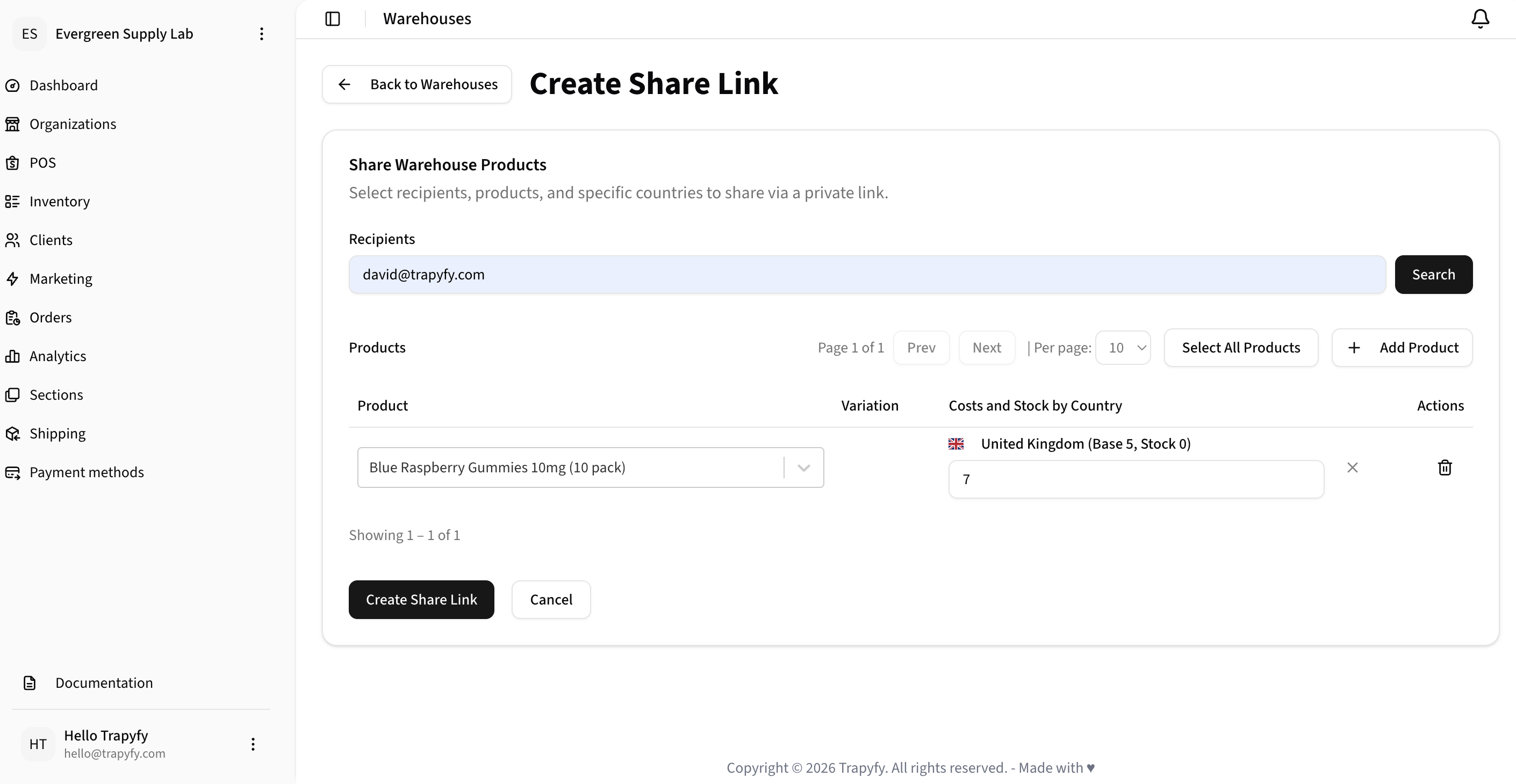
Create a share link by selecting the recipient, shared products, supported countries, and transfer cost.
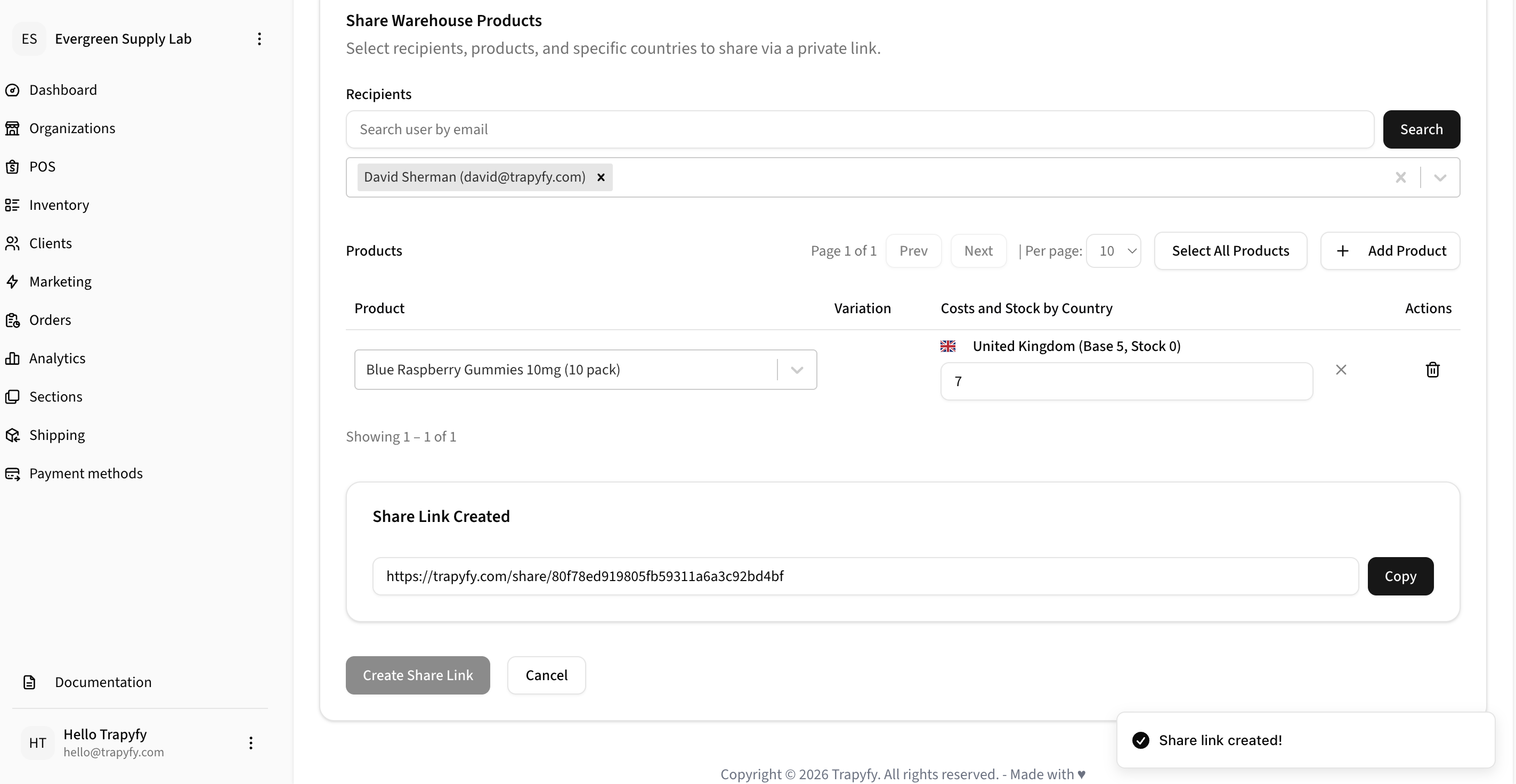
After creating the share link, copy the private URL and send it to the recipient.
Accepting shared products
Resellers accept shared products by accessing a supplier's share link. The link can be shared via email, direct message, or copied directly. Once accepted, products are automatically synced into the reseller's catalog.
Accept flow:
- Reseller receives share link from supplier
- Reseller clicks link or enters link in dashboard
- Reseller reviews shared products and transfer costs
- Reseller clicks Accept and Sync
- Products are copied into reseller's catalog with SHD- prefix
- Reseller can immediately edit and publish shared products
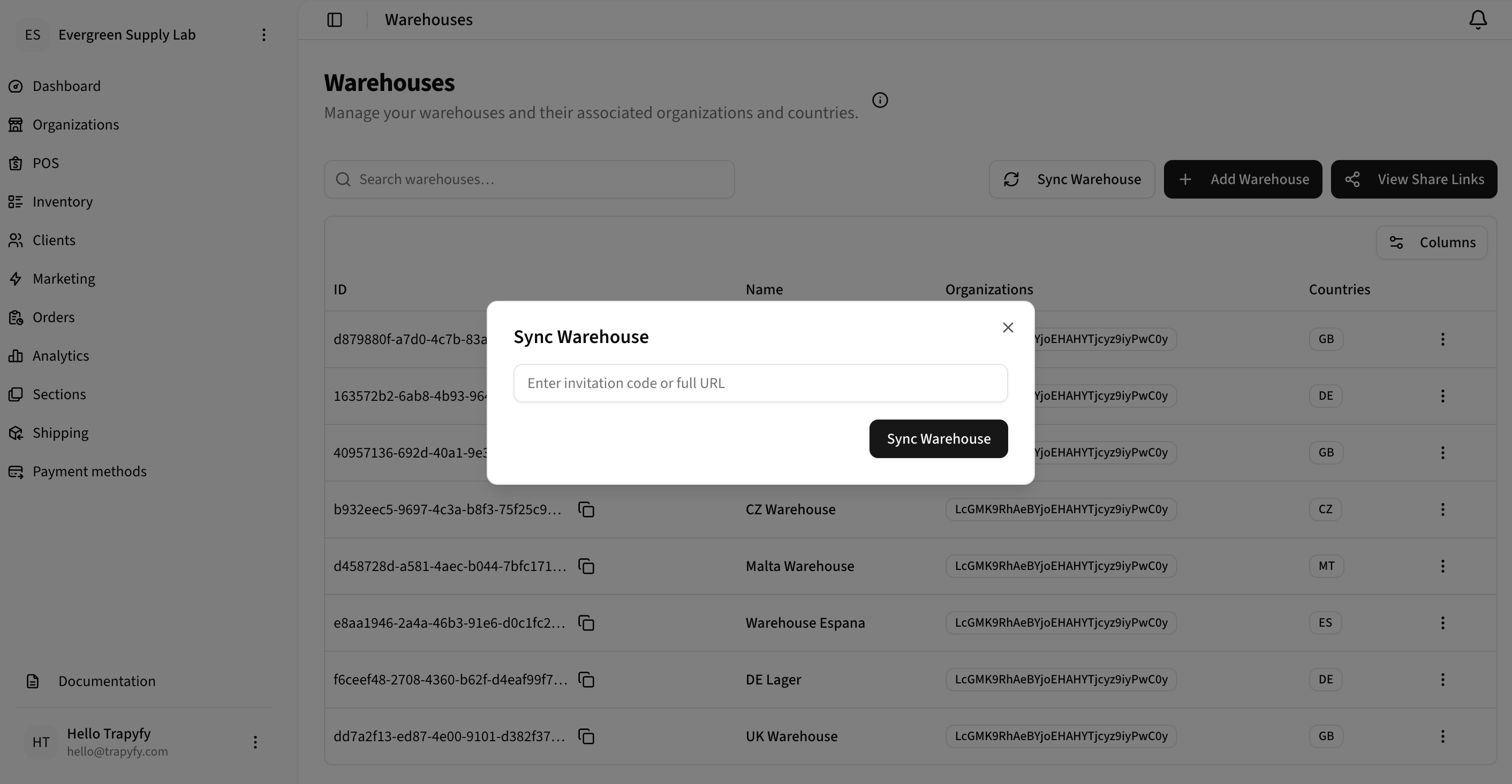
Recipients can sync shared warehouse products by entering the invitation code or full share URL. Product visibility and availability are still controlled by country, stock, and pricing rules.
Share links can be revoked by the supplier at any time. Existing shared products remain in the reseller's catalog but no new stock updates are synced after revocation.
Best practices
Set realistic transfer costs
Transfer costs should reflect your wholesale pricing and allow resellers to maintain healthy margins.
Monitor supplier stock
Keep inventory accurate to avoid overselling to multiple resellers.
Review supplier orders regularly
Check supplier order analytics to track reseller sales and profitability.
Communicate with resellers
Keep resellers informed about product changes, stock updates, and cost adjustments.
Related pages
Need help?
Email [email protected] with your merchant name, warehouse or order reference, screenshots or error messages, and a short description of the issue.